Quick answer: an AI browser is a browser or browser-like workspace that adds AI search, page summaries, tab understanding, comparison help, writing support, and sometimes agent actions such as filling forms or moving between websites. The best use today is not handing over your whole online life. The best use is narrower: research faster, summarize pages, compare options, prepare drafts, check sources, and ask for human approval before the browser touches accounts, money, messages, publishing, or permissions.
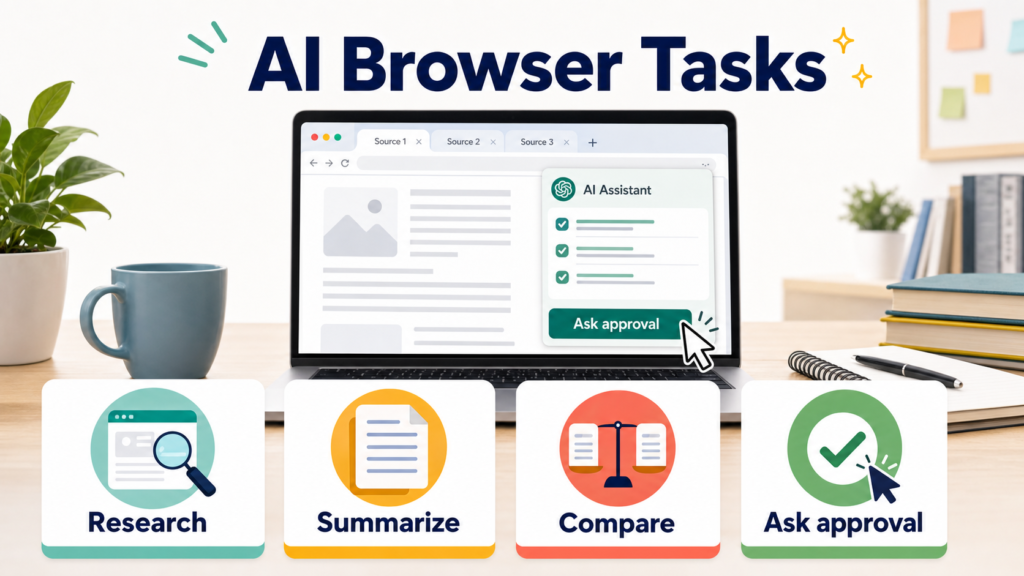
The topic is hot because browsers are becoming the next place where AI agents meet real work. Search engines are adding AI answers, Microsoft Edge promotes Copilot, Google continues to add AI features around Chrome and Search, Arc showed how a browser could become a productivity workspace, and newer AI-browser products such as Comet and Polar are pushing the idea that the browser itself can act like a work assistant. That shift matters because the browser is where people keep open tabs, signed-in accounts, saved passwords, payment methods, documents, dashboards, calendars, shopping carts, and private searches.
AI browsers are interesting not only because they automate tasks, but because they change how people explore information and interact with websites. Their usefulness depends on what they can access, what actions they can take, and how clearly users can review or reverse those actions. If you already separate browser profiles for work, school, banking, and AI tools, this article connects directly to the browser profile setup guide. If you plan to let a browser agent act across websites, read the AI agent security checklist. If the task includes checkout or payment, use the AI shopping-agent security guide before connecting cards or store accounts.
What an AI browser can actually do
AI browsers sit between search, chatbots, extensions, and automation tools. Some features are simple: summarize the current page, explain a term, rewrite text, or answer a question about an article. Other features are more agentic: open several tabs, compare pages, find prices, fill a form, draft an email, gather sources, or keep working while you move to another task. The more the browser can act, the more you need boundaries.
Search and source finding
Ask for sources, not just a final answer. A useful AI browser should open pages, show citations, and make it easy to inspect the original source.
Page summaries
Summarize long articles, product pages, help docs, policies, and support threads. Then click through to check the details that matter.
Tab understanding
Use AI to compare open tabs: two products, three hotels, several docs, or multiple help pages. This is one of the most practical browser-native uses.
Drafting
Let the browser draft a reply, form answer, trip plan, product shortlist, or meeting note. Keep the final send or submit button under human control.
Agent tasks
Some tools can perform multi-step actions. Treat these as higher risk because the browser may be logged into more accounts than the task needs.
Verification
The best AI-browser habit is source inspection. If the tool cannot show where an answer came from, do not treat it as finished research.
Where Comet, Polar, Edge, Chrome, and Arc fit
AI-browser products are not all the same. Perplexity’s Comet has been positioned around AI search and agent-style browsing. Polar has been described in current tech coverage as an AI browser for knowledge work. Microsoft Edge puts Copilot close to everyday browsing. Google Chrome and Google Search continue to bring AI features into the default web experience for many users. Arc is useful context because it showed a browser can be designed around organization, tabs, spaces, and productivity rather than only address-bar search.
Because availability, pricing, waitlists, and features change quickly, this guide does not rank every product as if the market is finished. Instead, use the product names as examples of four browser directions: AI-first search browsers, knowledge-work browsers, mainstream browsers with AI sidebars, and productivity browsers with stronger workspace organization. Your choice should follow the job you need done.
AI-first search browser
Best when your main job is finding, summarizing, and comparing sources. Watch source quality, click-through, and citation visibility.
Knowledge-work browser
Best when your job is reading, notes, tabs, projects, and document synthesis. Watch workspace privacy and file access.
Mainstream AI browser
Best when you want AI inside the browser you already use. Watch account mixing, sync settings, and extension permissions.
Productivity browser
Best when tabs, spaces, profiles, and workflows matter as much as AI. Watch whether AI features are actually strong enough for your work.
The safest first tasks
Start with tasks that are reversible and visible. If the AI browser makes a weak summary, you can fix it. If it compares product pages poorly, you can inspect the original pages. If it drafts a reply, you can edit before sending. Those are good early uses because they save time without handing over final authority.
Research a purchase
Open product pages, return policies, warranty pages, and reviews. Ask the browser to compare them, then check the sources yourself before buying.
Summarize a policy
Use it for privacy policies, school rules, travel terms, app permissions, or support docs. Verify dates and exceptions.
Compare travel options
Let it organize flight, hotel, eSIM, transit, and cancellation details. Keep booking and payment manual.
Read technical docs
Ask for setup steps and known limits. Developers can connect this with the AI coding tools guide when moving from docs to code.
Prepare a form draft
Let the browser draft, but do not let it submit forms involving identity, money, school, health, visas, taxes, or contracts.
Study or note review
Use summaries and practice questions, but protect student privacy just as the AI note-taking apps guide recommends.
Tasks that need human approval every time
The browser is a dangerous place to blur approval because many accounts are already signed in. A normal chatbot may not have access to your payment methods, password manager, work admin dashboard, email, or cloud files. A browser agent might be one click away from them. This is why approval is the center of safe AI-browser use.
Spend money
Purchases, subscriptions, upgrades, ads, cloud credits, app-store payments, and travel bookings should stop for human confirmation.
Send externally
Email, comments, social posts, support messages, customer replies, calendar invites, and public publishing need review before sending.
Change access
Password changes, passkey setup, app permissions, OAuth approvals, sharing settings, team invites, and admin changes need a human.
Delete or overwrite
Files, photos, repo changes, documents, database records, forms, and browser data should not be deleted by an autonomous browser task.
Handle private records
Banking, tax, medical, immigration, school, legal, HR, and customer records are high-impact. Use AI for drafts, not autonomous action.
Install extensions
Extensions can read pages and change browsing behavior. Install only from trusted sources and review permissions.
Privacy setup before you try an AI browser
The most practical privacy move is profile separation. Do not test a new AI browser or browser agent in the same profile that holds your banking session, family email, business admin tools, personal cloud drive, and saved payment methods. Create a dedicated AI-testing profile with minimal sign-ins. Use test accounts for agent tasks. Disable payment autofill unless needed. Keep password-manager and passkey approvals manual.
Chrome’s safety pages, CISA password guidance, and the passkeys and password managers guide all point toward the same habit: protect the account recovery path first. If your email, password manager, phone number, and recovery codes are exposed, every other account becomes easier to attack. An AI browser should not get casual access to that recovery chain.
Profile 1: everyday
Normal browsing, personal email, shopping, and entertainment. Avoid experimental agent access here.
Profile 2: work
Company apps, docs, ticketing, and dashboards. Use only approved AI tools and follow company policy.
Profile 3: banking
Financial accounts only. No experimental extensions, no autonomous browser agents, no shared sessions.
Profile 4: AI testing
Public research, test accounts, temporary docs, and low-risk tasks. This is where new AI browsers belong first.
How AI browsers change search habits
Search is moving from a list of links toward answers, summaries, and task flows. Google’s AI Mode updates show that AI search is becoming a mainstream behavior, not only a separate chatbot habit. That can help readers who want a faster first answer. It can also hide source quality if people stop clicking through.
A good AI-browser workflow keeps three steps visible: ask, inspect, and verify. Ask the question. Inspect the source pages the browser used. Verify the part that affects your decision. For a travel plan, verify cancellation and visa rules. For a product, verify warranty and return policy. For health, law, finance, school, or business decisions, treat the AI summary as a starting point, not the final authority.
Good prompt
Find three official sources and two independent explanations. Show the exact pages I should inspect before deciding.
Weak prompt
Tell me the best answer. This can produce a smooth summary without enough evidence.
Good habit
Open the source links and read the section that controls the decision: price, eligibility, deadline, permission, warranty, or risk.
Weak habit
Copy the answer into a form, email, post, or purchase flow without checking the original page.
AI browser vs chatbot vs automation tool
Use the right surface for the job. A chatbot is strong when you want reasoning, drafting, explanation, and structured thinking. An AI browser is strong when the work depends on live web pages, open tabs, accounts, forms, and source inspection. An automation tool is stronger when the task is repeatable and rule-based. The automation guide is the better path when you need the same workflow to run reliably every week.
Use a chatbot
Brainstorm, outline, explain, rewrite, plan, compare ideas, or reason through a decision using text you provide.
Use an AI browser
Research live pages, summarize open tabs, compare options, draft forms, and keep sources close to the answer.
Use automation
Move data between apps, trigger alerts, send routine reports, update sheets, or run scheduled jobs with predictable rules.
Use a human
Approve money, legal commitments, public messages, credentials, medical decisions, school submissions, and production changes.
A practical test before trusting a new AI browser
Do not test a new AI browser on a sensitive account first. Run a small evaluation with public information. Give each browser the same tasks and compare the output. The goal is not to find the flashiest demo. The goal is to see whether the browser helps you reach a better decision with less friction and more evidence.
Task 1: source hunt
Ask it to find official pages for a product, app, or policy. Check whether the links are current and specific.
Task 2: tab comparison
Open four pages and ask for a comparison. Check whether it notices details that are visible on the pages.
Task 3: form draft
Ask it to draft a non-sensitive form response. Confirm it does not submit anything without approval.
Task 4: privacy check
Review what data the browser can access, what it stores, how extensions work, and whether account sync is enabled.
Task 5: correction test
Point out an error and see whether it updates the answer from the source or just apologizes generically.
Task 6: stop test
Ask it to explain what it would do before a purchase, send, delete, install, or permission change. It should stop for approval.
Buyer checklist for AI-browser features
If you are choosing an AI browser for personal work, school, a small business, or a team, ignore vague phrases such as ‘agentic productivity’ until you can answer concrete questions. Which accounts can it access? Can it show sources? Can it separate profiles? Can it avoid storing sensitive data? Can you disable agent actions? Can admins manage it? Can you export or delete data? Can it explain what it did?
Source visibility
Does the browser show source pages clearly, or does it bury the answer in a smooth summary?
Profile control
Can you separate work, personal, banking, school, and AI-testing activity?
Permission control
Can you limit page reading, extension access, form filling, account linking, and autonomous actions?
Approval design
Does it ask before sending, buying, deleting, installing, or changing permissions?
Admin and policy
For teams, can IT configure settings, audit use, and restrict risky features?
Exit path
Can you delete history, disconnect accounts, remove extensions, revoke tokens, and return to a normal browser cleanly?
Common situations and the better workflow
Choosing software
Let the browser gather official pricing, security pages, docs, and recent reviews. Decide after checking the official plan limits yourself.
Booking a trip
Let it compare routes and cancellation rules. Book manually after checking the airline, hotel, and passport details.
Shopping
Let it compare products and return windows. Use manual checkout and separate payment confirmation.
School research
Let it gather sources and summarize. Students should write their own final work and follow teacher AI rules.
Work email
Let it draft and shorten. Review tone, facts, attachments, recipients, and confidentiality before sending.
Coding docs
Let it find docs and examples. Test code locally and keep generated changes inside normal code review.
FAQ
Is an AI browser better than ChatGPT or Claude?
It depends on the job. A chatbot is often better for reasoning, outlining, explaining, or rewriting. An AI browser is better when the work depends on live web pages, open tabs, forms, source inspection, and account context. Many people will use both.
Can an AI browser replace Google Search?
Not completely. AI search can give a faster first answer, but source inspection still matters. For decisions involving money, travel, health, legal obligations, school, work, or security, click through to the original source.
Should I let an AI browser use my normal profile?
Usually no for early testing. Use a separate AI-testing profile with minimal accounts. Keep banking, password management, admin dashboards, and personal cloud storage away from experimental browser agents.
Are AI browsers safe for shopping?
They can help compare products, prices, policies, and reviews. They should not complete payment or change account settings without human approval. Use the same caution you would use with any browser extension that can read pages or fill forms.
What is the first thing to check?
Check what the browser can access: profile data, pages, extensions, history, sync, passwords, payment methods, files, and connected accounts. Then test whether it stops before high-impact actions.
Source notes and date checked
Sources were checked on July 30, 2026. AI-browser product availability, pricing, waitlists, model features, and privacy terms can change quickly, so verify current pages before making a team-wide choice. This guide uses official browser, safety, AI-search, AI-risk, and cybersecurity sources as anchors.
- Arc browser official site
- Google Chrome official site
- Google Chrome safety page
- Microsoft Edge official page
- Google Secure AI Framework
- OWASP Top 10 for LLM Applications
- NIST AI Risk Management Framework
- Google Search AI Mode update
- Google Search guidance on AI-generated content
- CISA guidance on strong passwords
Bottom line: use AI browsers where they are strongest
The best AI browser workflow is not full autopilot. It is faster research with visible sources, better summaries of open pages, cleaner comparisons, and draft preparation that keeps important actions under human control. That is useful right now.
Start with reversible tasks. Separate profiles. Keep payment, password, passkey, email, publishing, admin, and deletion steps manual. If the browser can show sources and stop for approval, it can become a valuable work surface. If it hides sources or pushes you to connect too much too fast, treat that as a warning sign.
A useful summary does not require a browser that can purchase
In an illustrative shopping task, the browser first summarizes warranty text and then offers to complete checkout. Keep the permission decision tied to the second action rather than granting broad access for the whole task.
| Situation | Next check | Why it changes the decision |
|---|---|---|
| Summarize a public page | Verify important details against the displayed text. | A summary can omit conditions. |
| Read an account page | Decide which personal information is required. | Public-page usefulness does not justify unrestricted account access. |
| Complete checkout | Review seller, item, total, and destination before authorizing. | The transaction has effects beyond reading. |
This comparison separates the task stages. It is not a claim that every AI browser implements the same controls or that a browser profile alone provides strong isolation.