AI browser agents can inspect pages, collect evidence, check layouts, and prepare repetitive web tasks. Their usefulness comes with a simple constraint: a browser is connected to real accounts, real data, and real consequences. A safe workflow gives the agent a narrow job, a contained browser profile, a visible record of what happened, and a human checkpoint before any consequential action.
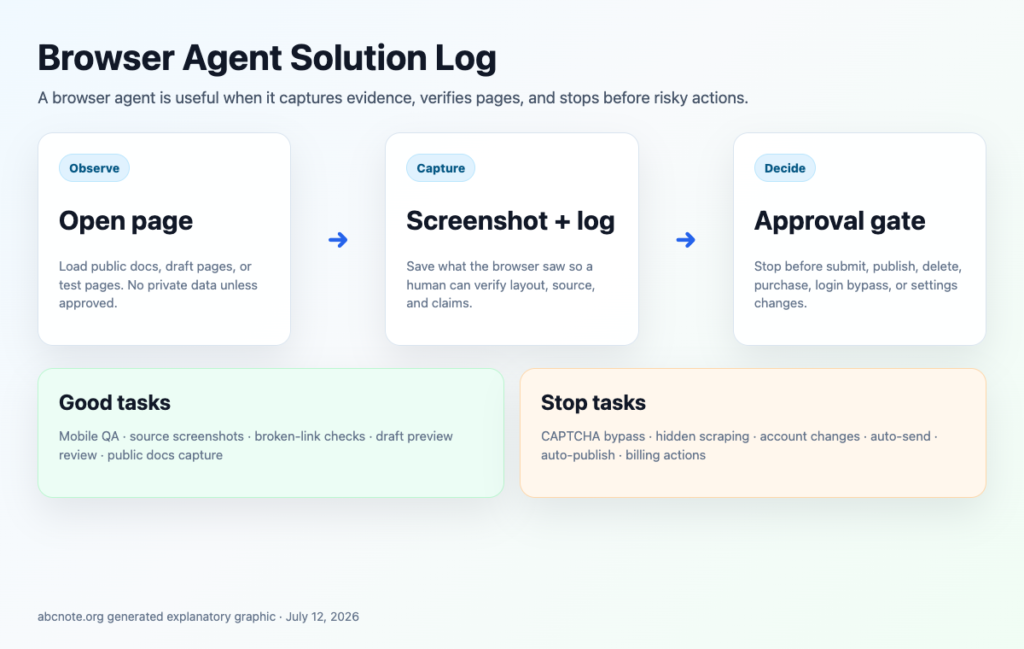
Quick answer
Use an AI browser agent first for observation, research, QA, and draft preparation. Give it a task-specific profile, block high-impact permissions, save evidence as it works, and require human approval before it sends, publishes, buys, deletes, or changes access.
A realistic problem: ABC Studio sees the update
ABC Studio wants an agent to check whether screenshots fit on mobile, collect source links, and verify draft pages. Those are useful browser tasks because they are visible and reviewable. The team does not want the same agent bypassing logins, solving CAPTCHAs, scraping private data, or clicking destructive buttons. The difference is not whether a browser is involved; it is whether the task has a clear boundary and a safe stopping point.
This is the practical question behind most browser-agent decisions: what should the agent be allowed to do by itself, and what should it only prepare for a person to review? A good answer does not depend on giving the agent broad access and hoping it behaves. It comes from defining the task, the profile, the allowed actions, the evidence to retain, and the point at which automation ends.
Why this is trending now
Many real tasks still happen on websites rather than through clean APIs. Teams use dashboards, forms, settings pages, analytics reports, documentation sites, preview screens, and web-based publishing tools. That makes browser access appealing when an automation needs to see the same page a person would see.
Agent platforms are also adding managed browsers, recordings, live views, and ways for people to intervene. Those features matter because browser work can be difficult to reconstruct after the fact. A reviewer needs to know which page the agent opened, what it saw, what it proposed to do, and whether anything changed.
The core issue: a browser can reach the messy parts of work
APIs are generally easier to scope when they are available. A browser is different: it can expose an agent to pages with personal information, shared accounts, saved sessions, permission controls, or buttons that create an immediate external effect. The agent may be capable of following a sequence, but capability is not permission.
The important safety rule is therefore simple: do not treat a browser agent as a person with unlimited authority. Treat it as a constrained worker with a specific assignment. It may collect evidence, compare visible information, and prepare a draft action. It should stop before actions that affect money, access, private information, public content, or another person.
Good and bad browser-agent tasks
Risk is determined by the effect of the task, not by how simple the click appears. Opening a public help page and taking a screenshot is different from submitting a form, even if both actions use the same browser window.
Low-risk tasks: observe and document
Low-risk work is usually read-only, public, and easy to verify. It is a sensible place to begin because the output can be reviewed without having changed a live account or sent anything to another person.
| Task | Why it is lower risk | Review rule |
|---|---|---|
| Capture a public documentation screenshot | The page is publicly accessible and no account state changes. | Check the source and make sure the image does not reveal private information. |
| Collect official source links for a draft | The task produces a research trail rather than an external action. | Review the links before relying on them in published work. |
| Check a page layout in a preview environment | The agent observes visible presentation without publishing. | Use a test or preview account where possible. |
Medium-risk tasks: prepare, but do not finish
Medium-risk work can change a page or prepare information for submission, so it needs a more deliberate checkpoint. The agent can often navigate to the relevant screen, fill a draft field, compare settings, or prepare a form. It should then stop and show the person exactly what would happen next.
A useful medium-risk rule is: preview first, document the rollback path, and do not make the final external action automatic. If the task cannot be clearly undone or checked, treat it as high risk instead.
High-risk tasks: require explicit approval
High-risk tasks affect money, permissions, account settings, public content, private files, messages, or another person’s data. Examples include publishing a page, sending a message, deleting files, buying a product, changing a password or security setting, and connecting a new integration. The agent can assemble context and prepare the action, but a person should approve the final step every time.
CAPTCHA bypasses and attempts to work around login limits do not belong in a safe browser-agent workflow. They are not ordinary productivity shortcuts; they cross a boundary the workflow should respect.
Start with a contained browser profile
A task-specific browser profile helps limit the blast radius of a mistake. It keeps the agent’s work separate from a personal browsing session and makes it easier to understand which cookies, logins, and permissions are available to the task. The aim is not to create friction for its own sake. The aim is to prevent a lightweight QA task from quietly inheriting access to every account already open in a shared browser.
Before an agent begins, decide what the profile should contain. If the task only needs public documentation, it may not need a signed-in account at all. If it needs a preview environment, use an account with only the permissions required for that preview. If the task touches a live system, establish the approval point before the agent reaches a consequential button.
What a good solution log should show
A browser-agent log should make the work understandable without exposing unnecessary private details. It is not a transcript for its own sake. It is the record a reviewer uses to confirm that the agent visited the intended page, saw the relevant state, and stopped before an action that required approval.
Identity and scope
| Log item | Why it matters |
|---|---|
| Page URL or source | The reviewer can confirm that the agent used the intended page. |
| Timestamp | The result can be placed in the correct sequence of work. |
| Account or profile name | The reviewer can tell which working context was used. |
| Task prompt or assignment | The agent’s observed work can be compared with the intended scope. |
Evidence and decision points
| Log item | Why it matters |
|---|---|
| Screenshot or visible result | The reviewer can see layout, errors, or state changes. |
| Proposed action | The agent explains what it would do next before doing it. |
| Stop reason | High-risk actions do not happen silently. |
| Rollback note | The team knows how to restore the earlier state if an approved action fails. |
For important steps, retain screenshots from before and after the action as well as the exact command or tool call when one was used. This makes debugging possible, helps rebuild a failed tutorial, and shows which part of a workflow needs a safer boundary. Logs should be useful to the people responsible for review, not a reason to store more sensitive detail than the task requires.
The human-in-the-loop rule
The useful browser agent is not the one that clicks everything. It is the one that stops at the right moment. A person should approve actions that send, publish, buy, delete, share, change settings, grant access, or connect systems. This is especially important when the browser has an authenticated session and the effect may be difficult to reverse.
Human review works best when the agent presents a clear decision, not a vague update. The review screen or log entry should say what the agent found, the exact action it proposes, the page or account involved, the expected effect, and the rollback option. That turns approval into a meaningful check rather than a rubber stamp.
Practical review rules before an AI browser agent clicks
Use this simple rule: if the action changes money, permissions, account settings, public content, private files, or another person’s data, the agent should pause and ask for review. Let the agent collect evidence, open the right page, summarize the state, and prepare a draft action, but keep the final click human-controlled.
For low-risk actions, such as opening documentation, comparing visible settings, or taking screenshots in a disposable profile, automation can run with fewer interruptions. For medium-risk actions, such as filling a support form or changing a noncritical preference, require a preview screen and a rollback note. For high-risk actions, such as posting publicly, sending messages, deleting files, buying products, or connecting a new integration, require explicit approval every time.
For a first project, ask the agent to research three official documentation pages, capture citations, and draft a comparison note without submitting any form. For a second project, let it fill a form in a sandbox account but stop before submit. For a third project, connect a webhook or API only after the team knows how to disable the integration, rotate the secret, and restore the previous state. This staged path keeps browser automation useful while avoiding the common mistake of giving a new agent full access on day one.
AI Browser Automation publishing checks
Before publishing a guide, treat browser automation as a reader decision rather than a product feature list. The reader should be able to identify a safer first use case, recognize the risky default, and verify the source behind any setup advice. Keep the practical path visible: select a low-risk task, test it in a contained environment, record the result, and document the rollback step.
| Check | Reader action | Why it matters |
| Profile | Use a task-specific browser profile. | Shared cookies make mistakes harder to contain. |
| Permission | Block payments, messages, and deletes until reviewed. | Browser agents can act on real accounts. |
| Evidence | Save screenshots and logs for important steps. | A visible trail makes debugging possible. |
What to watch next
- Official rollout notes and product availability.
- Pricing, usage limits, and plan restrictions.
- Security, privacy, and approval controls before connecting real accounts.
- Whether an update changes search demand, publishing workflows, or software setup habits.
Useful references
- Cloudflare: Browser Run for AI agents
- Cloudflare: Agents Week in review
- Cloudflare: Project Think
- Playwright documentation
Last checked: July 12, 2026.
Browser agent approval gates by action
| Action | Default handling | Why |
|---|---|---|
| Read a public product page | Allow in a contained browser | Low-impact observation; still treat page instructions as untrusted |
| Draft an email or form | Prepare, then review | Personal data and recipient errors are possible |
| Send, purchase, delete, or change permissions | Explicit human approval | Potentially irreversible external action |
For a realistic rehearsal, use a test account, log each browser action, and confirm that the agent stops before the final submit button. The permission boundary must be enforced by the tool, not merely requested in a prompt.
Approval belongs to the final action details
Imagine a browser agent preparing a form. Between preparation and submission, the page changes a recipient or amount. An earlier general approval should not cover an altered transaction.
| Situation | Next check | Why it changes the decision |
|---|---|---|
| Read-only collection | Check the source and preserve what was observed. | Observation can be repeated without sending the form. |
| Draft prepared | Present recipient, values, and consequential choices together. | The reviewer needs the actual proposed action. |
| Details change after review | Stop and review the changed action. | Approval is tied to a specific result, not unlimited future clicks. |
Enforce the boundary in the executing system where possible. This scenario explains a review design; it is not a claim that every agent tool implements that control or that a prompt alone can enforce it.