The most frustrating Ollama setting is the one that looks correct in a terminal but never reaches the running server. A tray app, a macOS application and a Linux systemd service do not inherit configuration from the same place. Set variables where the server actually starts, restart that process, and verify the resulting behavior. For a first local setup, keep the endpoint on 127.0.0.1, disable cloud features if that is your requirement, and increase context only for a demonstrated workload.
This article assumes that the installation walkthrough already produced a working local chat. It covers configuration ownership, OS-specific application, storage relocation, reusable model profiles, memory residency and rollback. Each change should solve a named problem rather than turn a small local runtime into an unexplained collection of tuning flags.
Find the process that owns the setting
There are three practical configuration layers. Server environment variables affect the Ollama server at startup. A Modelfile provides defaults and instructions for a named model configuration. Request options or interactive-session settings affect the work being submitted. A change at one layer does not retroactively rewrite another process’s environment or every client’s behavior.
For example, a server context default can be overridden by an explicit num_ctx in an API call. A desktop client can also have its own context controls. A system instruction in a custom model profile is not a file permission. Before debugging precedence, inspect what your client actually sends and which named model it requests.
| Need | Set it here | Confirm it here |
|---|---|---|
| Local bind or model directory | Server launch environment | Restart, endpoint behavior and model inventory |
| Reusable writing defaults | Named Modelfile configuration | Inspect the profile and repeat the same task |
| Context for one experiment | API options or interactive session | Loaded runtime and reviewed output |
The Ollama FAQ documents server variables across operating systems. Microsoft’s environment-variable documentation explains why a PowerShell process change is different from a persistent Windows user setting. That distinction is the first fix for a surprising number of “ignored settings” reports.
Capture a baseline before changing anything
Record the version and model inventory. Run one short prompt, then inspect loaded state in another terminal. Save the current settings you intend to replace, including whether a variable was previously absent. Restoration means restoring the previous value, not blindly assigning the tutorial’s default.
ollama --version
ollama list
ollama run qwen3:4b "Explain RAM in one sentence."
ollama ps
For endpoint reachability, use Invoke-RestMethod -Uri http://localhost:11434/api/tags on PowerShell or curl http://localhost:11434/api/tags on Mac/Linux. A models response confirms that the API is responding. It does not confirm every server variable, GPU behavior or application policy.
Keep a tiny change note: problem, variable, old value, new value, restart method and verification result. This is particularly useful when a storage change makes the inventory appear empty. With the old path recorded, that symptom is a diagnosable configuration switch instead of a mysterious loss of files.
Windows: configure the app, not just PowerShell
The standard Windows app runs in the background. Quit it through its tray menu before changing user variables. Open Windows Settings and search for environment variables, then select “Edit environment variables for your account.” Add or edit only the variables needed for the chosen change and save them. Relaunch Ollama from the Start menu, and open a new PowerShell window for checks.
A practical local-only starting configuration is OLLAMA_HOST set to 127.0.0.1:11434 and OLLAMA_NO_CLOUD set to 1. An explicit OLLAMA_CONTEXT_LENGTH of 4096 is a controlled short-text starting condition. It is not a recommendation for every model or a large coding workflow. Leave storage at its default unless you have a reason to move it.
For readers comfortable with PowerShell, persistent user values can also be set through the .NET environment API:
[Environment]::SetEnvironmentVariable('OLLAMA_HOST', '127.0.0.1:11434', 'User')
[Environment]::SetEnvironmentVariable('OLLAMA_NO_CLOUD', '1', 'User')
[Environment]::SetEnvironmentVariable('OLLAMA_CONTEXT_LENGTH', '4096', 'User')
These commands change the User scope, not the environment of an already running Ollama process. Restart the app afterward. Display the persisted values directly when checking the change:
[Environment]::GetEnvironmentVariable('OLLAMA_HOST', 'User')
[Environment]::GetEnvironmentVariable('OLLAMA_NO_CLOUD', 'User')
[Environment]::GetEnvironmentVariable('OLLAMA_CONTEXT_LENGTH', 'User')
Invoke-RestMethod -Uri http://localhost:11434/api/tags
A command such as $env:OLLAMA_CONTEXT_LENGTH = '4096' changes the current PowerShell process and its future children. It does not reconfigure a tray app that was launched elsewhere. It is useful if you deliberately quit the app and start ollama serve from that shell, but that is a different launch arrangement. Do not run a second server on the same port alongside the app.
To roll back, edit the user variable to its saved value or delete the newly introduced variable through the same environment-variable dialog, then restart Ollama. This is clearer than changing both User and Machine scopes while troubleshooting.
macOS: use the application launch environment
For the macOS application, the official Ollama route uses launchctl setenv. Quit the app, set the selected variables in Terminal, then open the app again. An export in a shell affects processes launched from that shell; it does not automatically reach an application started from the Dock.
launchctl setenv OLLAMA_HOST "127.0.0.1:11434"
launchctl setenv OLLAMA_NO_CLOUD "1"
launchctl setenv OLLAMA_CONTEXT_LENGTH "4096"
Inspect the launch environment and server behavior after reopening the app:
launchctl getenv OLLAMA_HOST
launchctl getenv OLLAMA_NO_CLOUD
curl http://localhost:11434/api/tags
Treat this as an application launch setting, not a promise of persistence across every login and reboot. Recheck after restarting the Mac. If persistent deployment is needed, design a launch configuration deliberately instead of assuming that one shell command permanently provisions the workstation.
To remove a newly added value, quit the app, use launchctl unsetenv VARIABLE_NAME and reopen it. If a value existed before your change, restore that value instead. For an optional model path, set OLLAMA_MODELS to a real, absolute, writable directory. Avoid placeholders in commands you intend to execute.
Linux: a systemd service needs a service override
On a standard service installation, inspect the existing unit and environment before editing. The service account and executable path can differ from a manually started user process. The following commands read that configuration:
systemctl cat ollama
systemctl show ollama --property=User --property=Environment
Create a drop-in through the systemd editor:
sudo systemctl edit ollamaIn the editable override area, add only the values you want to apply:
[Service]
Environment="OLLAMA_HOST=127.0.0.1:11434"
Environment="OLLAMA_NO_CLOUD=1"
Environment="OLLAMA_CONTEXT_LENGTH=4096"
Save and exit, then reload the unit definitions and restart the service:
sudo systemctl daemon-reload
sudo systemctl restart ollama
systemctl status ollama --no-pager
systemctl show ollama --property=Environment
curl http://localhost:11434/api/tags
Editing ~/.bashrc for your own user does not replace this service override. The service is started by its service manager. Also, changes to environment definitions require a process restart; a browser refresh of a chat page does not accomplish that.
If the service fails, inspect journalctl -u ollama –no-pager -n 80 and the saved override. A malformed unit entry is a configuration problem to repair before experimenting with models. To roll back one change, edit the specific drop-in back to the saved content, reload and restart. Avoid removing all drop-ins when other administrators may have added unrelated settings.
For Linux without systemd, launch the foreground server in the shell that contains the variables. Quit any existing conflicting instance first:
OLLAMA_HOST=127.0.0.1:11434 OLLAMA_NO_CLOUD=1 OLLAMA_CONTEXT_LENGTH=4096 ollama serveKeep that terminal open and send client requests from another terminal. This example is a temporary foreground arrangement; startup persistence must be handled by the process manager used on that host.
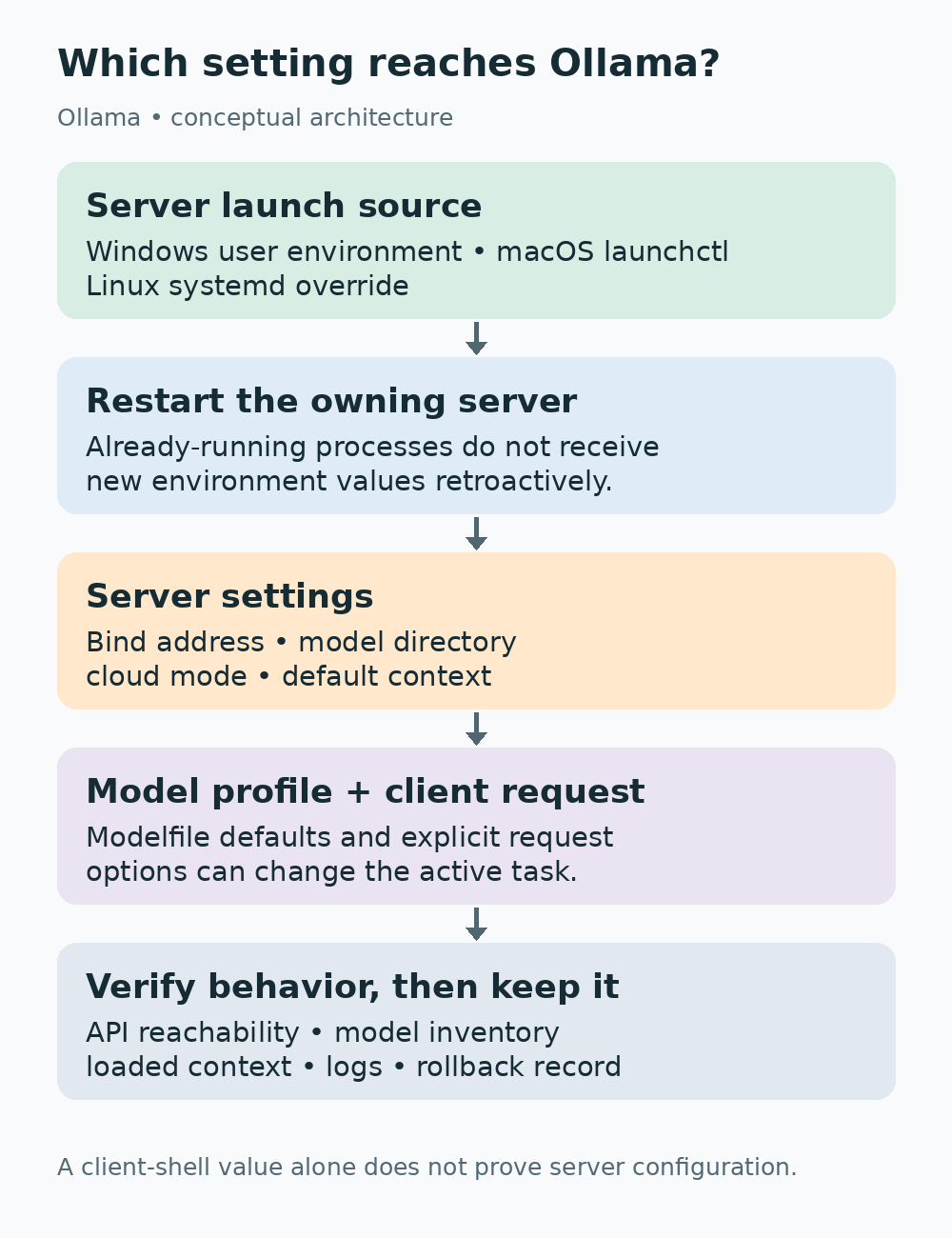
The configuration path depends on the launch path. Seeing a value in a client shell is useful evidence about that shell, but the restarted server and its behavior are the final check.
Disable cloud features without overwriting other configuration
Ollama offers a server configuration alternative for local-only mode. Add disable_ollama_cloud with a boolean true value to the JSON object in ~/.ollama/server.json, then restart Ollama. On Windows, the user-home equivalent is %USERPROFILE%\.ollama\server.json. The environment alternative is OLLAMA_NO_CLOUD=1.
{
  "disable_ollama_cloud": true
}
If the file already exists, merge the property rather than replacing the whole object. JSON requires quoted property names and does not allow ordinary comments or trailing commas. Back up the file before editing and preserve the original permissions. Do not store this configuration alongside a published tutorial with personal paths or account information.
The documented log confirmation is Ollama cloud disabled: true. Check the log after the restarted server begins. This disables Ollama cloud models and web search; it does not audit a separate application’s own network access. Keep the scope of the privacy claim aligned with what the setting actually controls.
Use a downloaded local model for an offline repeat test after setup. Successful output with the network disconnected demonstrates that this bounded request can run locally. It does not prove that backups, plugins or other applications never communicate remotely.
Move model storage without losing the rollback path
A dedicated model directory can free space on the system drive or make capacity management easier. OLLAMA_MODELS tells the server where to look. Changing it is not an automatic migration command. Plan the cutover as a storage change: identify the current location, stop the server, copy or re-download deliberately, apply the variable, restart and inspect the inventory.
Default locations documented in the FAQ include ~/.ollama/models on Mac, the user's .ollama\models directory on Windows, and /usr/share/ollama/.ollama/models for the standard Linux service arrangement. A manually launched Linux server under another user may have a different home and permissions. Confirm the actual arrangement before copying files.
For a simple Windows trial, create D:\OllamaModels if that drive exists and set it as the user OLLAMA_MODELS value. Restart the app and pull one small model into the new location. Seeing the model in ollama list and successfully running it proves the new path is usable. Keep the old library until you decide whether to migrate or re-download the rest.
On Mac, use an absolute path on a reliably mounted volume. A directory on an external SSD is unavailable when the device is disconnected or mounted under a different name. That can explain an empty library or startup failure without any corrupted model files. Check the volume before rerunning downloads.
For a Linux service using the standard ollama account, a dedicated directory can be prepared narrowly:
sudo install -d -o ollama -g ollama -m 0750 /srv/ollama-models
sudo systemctl edit ollama
Add the following to the existing [Service] override, preserving its other entries:
Environment="OLLAMA_MODELS=/srv/ollama-models"Reload and restart as shown earlier. Test ollama list and a small pull/run. The service account needs access to the directory and its parent path. Do not recursively change ownership of /srv, a shared team directory or the entire external drive to make one application work.
If copying an existing library, copy the complete directory structure while the server is stopped and verify the resulting files and permissions. Do not select individual blob files based on their names. Retain the original until the new library and model execution are confirmed. Rolling back the variable to the old location should remain possible throughout the cutover.
Choose context with an explicit trial
Context is a token budget for input history and generation, not a document-size label in megabytes. A model’s maximum supported context, a server default and the active allocation can differ. The current context-length page describes hardware-dependent defaults, so avoid an unconditional claim that every installation always uses the same budget.
For an interactive experiment:
/set parameter num_ctx 4096For a request-scoped API setting, pass options.num_ctx. This is convenient because it keeps the experiment explicit and avoids changing every client’s server default:
{
  "model": "qwen3:4b",
  "messages": [{"role": "user", "content": "Summarize the supplied short note."}],
  "stream": false,
  "think": false,
  "options": {"num_ctx": 4096, "temperature": 0.2}
}
The desktop application also exposes context controls; inspect its current settings instead of assuming they match a different API client. Run a real request and inspect ollama ps while it is loaded. If your version shows a CONTEXT column, compare it with the intended allocation.
Increase the budget only when a longer workload needs it. Larger context can increase memory demand and change placement or responsiveness. Test with known facts near the beginning and ending of a synthetic document. If the result is incomplete, distinguish an insufficient budget from a model’s extraction failure. A large allocation does not guarantee perfect recall.
Build a named profile with a Modelfile
A Modelfile is a configuration recipe for a model. It can select a base model, set parameters and supply a system instruction. It does not fine-tune weights merely because you created a new name. Save this original example as a UTF-8 file called Modelfile:
FROM qwen3:4b
PARAMETER num_ctx 4096
PARAMETER temperature 0.2
SYSTEM "You rewrite technical notes. Preserve facts, names and numbers. Separate observations from proposals. State missing information. Do not invent a root cause or personal experience."
Create and inspect the named configuration:
ollama create note-helper -f Modelfile
ollama show note-helper
ollama show note-helper --modelfile
ollama run note-helper
On Windows, check that the editor did not save Modelfile.txt; if it did, use that exact path with -f. The Modelfile reference explains available instructions. Keep the recipe under your own version control when it becomes part of a repeatable workflow, and record the base model identifier with the trial.
Lower temperature changes sampling behavior. It does not make unsupported statements true or guarantee identical output across runtime versions. A system instruction is a behavioral request, not authorization to read files or execute commands. Test the profile with missing and contradictory input before relying on it for draft preparation.
Manage residency before tuning concurrency
A loaded model can remain in memory after answering. That can reduce the need to reload for subsequent requests but retains resources. Use ollama ps to inspect loaded state and ollama stop with the actual model name to unload it. If you ran note-helper, stopping only qwen3:4b may not target the loaded named profile you intended.
The chat API accepts keep_alive, such as "5m" for continued residency or 0 to unload after the request. Choose deliberately. A laptop switching between workloads may benefit from unloading; a repeated short-task workflow may prefer residency. Measure cold and warm response time before calling either choice faster for your machine.
Test concurrency only after the single-user workload is stable. Increase one variable at a time and record memory pressure, queueing and answer quality before adopting the change.
Keep GPU selection specific to the backend
On a multi-GPU system, Ollama’s hardware documentation describes selection variables for NVIDIA, ROCm and Vulkan. These are not interchangeable. Identify the backend in use before setting CUDA_VISIBLE_DEVICES, ROCR_VISIBLE_DEVICES or GGML_VK_VISIBLE_DEVICES. A numeric index from one backend need not mean the same device in another.
For NVIDIA inventory, nvidia-smi -L reports devices and UUIDs. The Ollama documentation notes that UUIDs are more stable than numeric ordering for that selection path. Cross-check NVIDIA’s hardware listing when compatibility is uncertain. Do not copy a stranger’s device index into your configuration.
After a selection change, restart the server and repeat the same short prompt. Inspect logs and ollama ps. If CPU fallback appears, resolve the compatibility or selection issue before assuming the model itself is too slow. Preserve a rollback to the previously working launch environment.
Localhost binding is not an access-control system
For a single-computer setup, 127.0.0.1:11434 keeps the listener on loopback. Binding to 0.0.0.0 changes the network exposure and is a separate deployment decision. The local API does not become authenticated because you added a browser-origin entry. CORS settings govern browser request origins; they do not replace identity, authorization or network controls.
Sharing the service requires a separate authenticated deployment design. Leave it on loopback for this single-computer tutorial; processes already running on the computer can still reach that local endpoint.
Verify and roll back at the layer you changed
For an unreachable endpoint, check the app or service first. For a newly empty library, inspect OLLAMA_MODELS and permissions. For a context change that appears ineffective, inspect request options and the active client. For an address-in-use message, identify the already-running server rather than starting another one.
Windows logs are under %LOCALAPPDATA%\Ollama; Mac server logs are under ~/.ollama/logs; service-based Linux logs are available through journalctl. Use the troubleshooting documentation for platform details. Save the exact error and the last change; do not collect unrelated confidential logs just to prove that you investigated.
A completed configuration change has five parts: saved old value, applied new value, restarted owning process, confirmed intended behavior and preserved a rollback. If any part is missing, the setup is still an experiment.
Choose the smallest set of settings that makes the workload understandable. A short, verified configuration is easier to maintain than a long list of flags whose effects nobody can explain.
Verification note
Official references were checked October 10, 2026. Commands and profiles are tutorial examples; they are not a claim of execution on the reader’s machine or of measured performance on every OS. The hero is conceptual artwork and the inline diagram explains configuration scope.
Once configuration is verified, use the technical-notes and Python workflow guide to check structured output against its source before saving a review artifact.