
If your Samsung Galaxy or iPhone is missing, begin with its built-in finding service before you let panic write the story. Samsung’s SmartThings Find and Samsung Find give a registered Galaxy owner one official place to locate, ring, lock, track, or erase a missing device. Apple’s Find My guidance says a previously enabled Find My setup can show a missing iPhone on a map, including offline-location support through the Find My network, while some requested actions wait until the phone reconnects. Those facts lead to a useful first decision: use the official tool to see what it can show, then treat the result as a clue—not a verdict about where the phone is or who has it. This guide explains the two manufacturer routes, what an online or last-known signal can reasonably tell you, and why security deserves attention even when there is no evidence that anyone has used the phone. By the end, you should be able to choose the right official service, interpret a limited result without over-reading it, and separate a practical search from speculation.
First minutes: get a signal, then protect it
A missing phone creates two jobs at once: establish the best official view of the device, then protect the digital life attached to it. Do not begin by deciding whether the phone was stolen, permanently lost, or already compromised. Begin with the ecosystem you own.
For a Galaxy, go to Samsung’s SmartThings Find destination or its current support route, sign in with the Samsung account associated with the registered phone, and open the missing device. For an iPhone, sign in to Apple’s Find My route with the Apple Account associated with the phone, then open the device shown there. The screen may offer a current state, a recent clue, or no useful live signal. Each outcome changes what you do next; none settles the whole story.
If the device appears reachable and you think it is nearby, use the finding service’s available locating action before widening the search. If the phone is not where you can safely retrieve it, move immediately to the protection action the official service makes available. Samsung describes SmartThings Find as a way to track, lock, or erase a device; Apple says an eligible iPhone can enter Lost Mode. The important sequence is simple: check the official status, search the credible nearby places, then protect the device if the risk or uncertainty has grown.
Read status as an instruction, not a story
Samsung says location tracking and other SmartThings Find features work when the lost device is turned on and connected to cellular or Wi-Fi. Apple gives an equivalent boundary for its lost-device route: an iPhone appears online and can be in Lost Mode only when it has been turned on and connected to Wi-Fi or cellular. An online result can support an immediate search or a protection decision. A missing result can mean that the service lacks a current connection; it does not identify the cause.
That distinction is worth making early because it prevents two bad reactions: waiting indefinitely for a perfect map pin, or treating an incomplete signal as proof of theft or misuse. The purpose of the first check is narrower and more useful—choose the next responsible action.
Samsung Galaxy: work from SmartThings Find
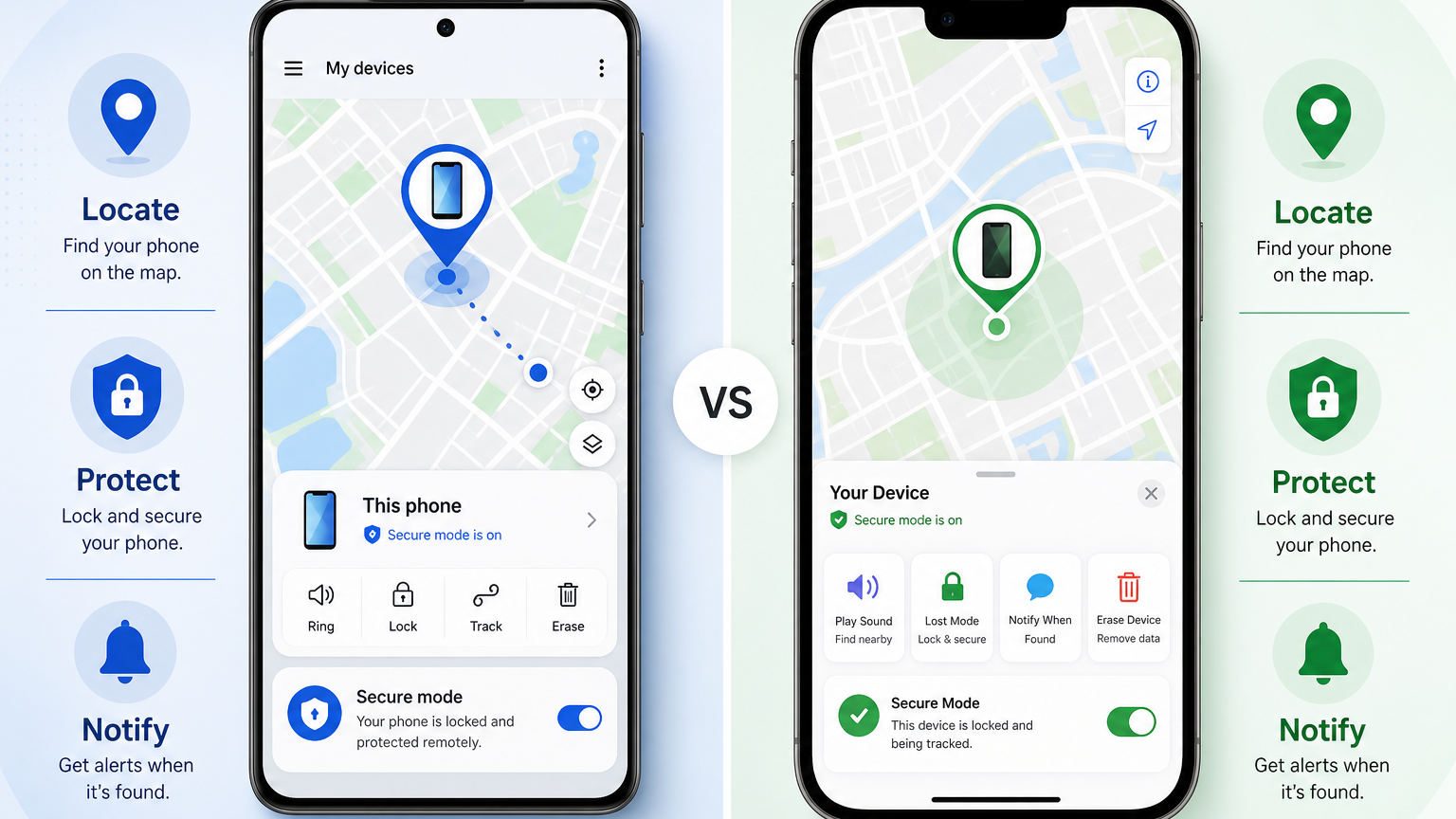
Samsung’s current support guidance puts the practical recovery controls in one place: locate the registered Galaxy on a map, track its location, make it ring, lock it, and erase its data if recovery is no longer realistic. That is the documented scope to use here—no unofficial recovery site is needed to begin.
Open Samsung’s SmartThings Find, sign in with the Samsung account connected to the missing Galaxy, and select the registered device that is missing. Samsung’s published material establishes the account-linked service and the available categories of action, but not a universal button-by-button layout; labels can vary by device and current service screen. Use the action labels Samsung presents for that specific device rather than relying on a screenshot or an old menu path.
A practical Galaxy sequence
- Confirm the registered device. In SmartThings Find, make sure the selected Galaxy is the phone that is missing, rather than another phone, tablet, watch, or accessory on the same account.
- Read the current status first. Samsung says location tracking and related features require the missing device to be turned on and connected to cellular or Wi-Fi. A current result can direct the next physical search; a missing result is a limit on the service’s present connection.
- Use the locating or tracking control if it is offered. Samsung explicitly identifies SmartThings Find as a way to remotely locate a registered Galaxy device. Use the result to set a search priority, not to infer who has the handset or what has happened to it.
- Choose lock when protection should come before more searching. Samsung’s support guidance specifically names lock alongside tracking and erase. It is the documented protective action to consider while you keep the device in its official account-linked recovery path.
- Reserve erase for a deliberate last-resort decision. Samsung provides remote erase for a registered Galaxy. Treat it as a privacy action, not as evidence about the handset’s present location or condition.
The advantage is practical: locating and device-data controls are gathered in one Samsung-account service. The service cannot promise that a phone will remain reachable, but it gives the owner a defined place to check status and make the next proportionate choice.
What a Galaxy result can support
A location-related result can tell you where to begin looking. A current connection can support using the locating or tracking function Samsung makes available. A device that cannot presently be reached calls for restraint: search the physical places that fit the last credible clue, then decide whether the documented lock, backup, or wipe functions are warranted by what is stored on the phone.
Samsung’s limit is clear. Location tracking and other SmartThings Find features work when the lost device is on and connected to cellular or Wi-Fi. A useful signal may help prioritize a search, but it does not prove the phone’s current custody, condition, or history between updates.
Offline Finding can help — if you enabled it before the loss
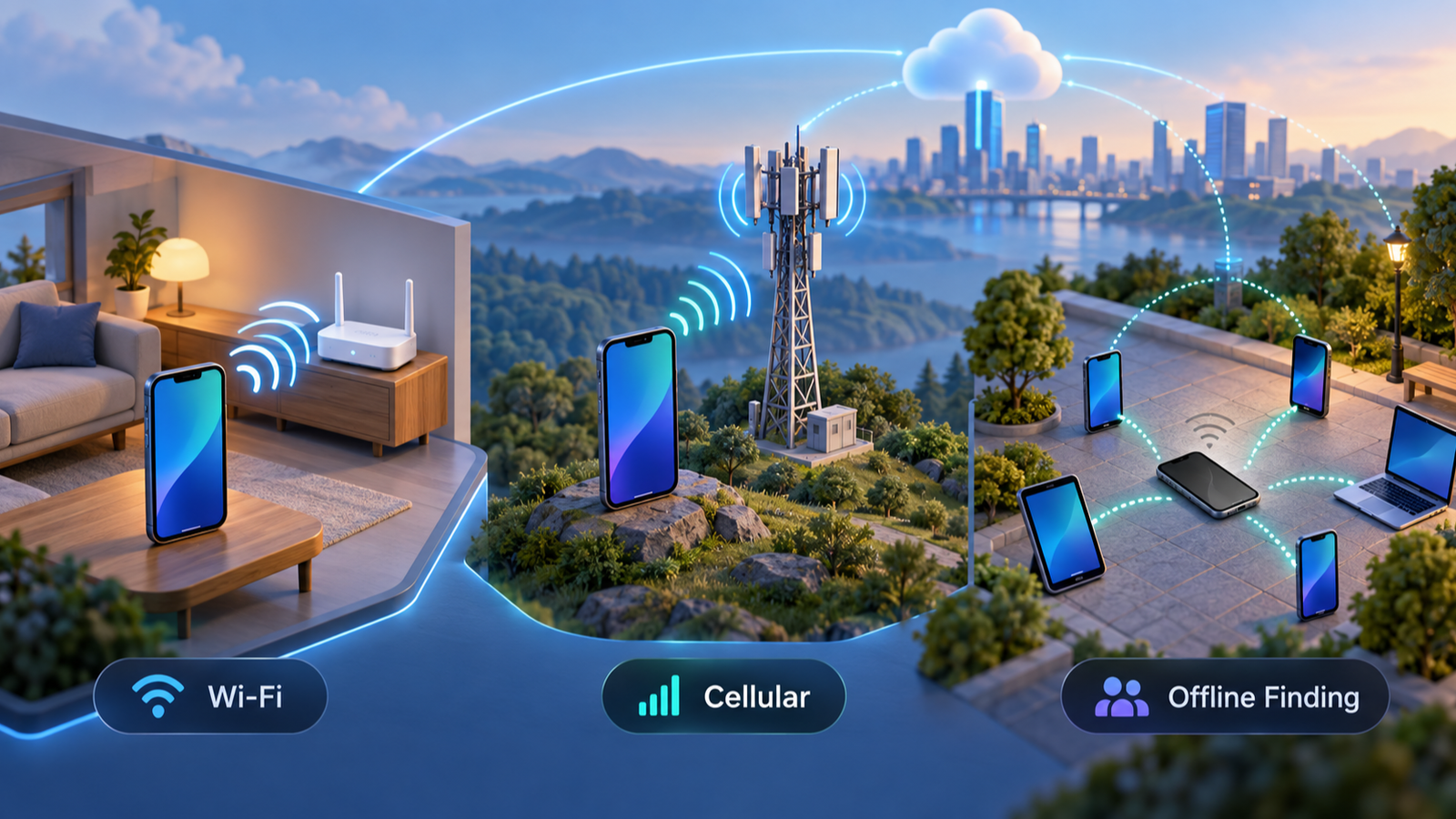
Samsung’s current SmartThings Find guidance says Offline finding can help locate a missing Galaxy device even when it is turned off or not online; after the device has been offline for about 30 minutes, nearby Galaxy devices can receive its signal and relay location information to Samsung’s server. That is useful evidence that the setting belongs in a preparedness conversation. It is not a blanket promise that every missing Galaxy phone will provide a current location in every offline circumstance.
For a missing handset, start with the state SmartThings Find reports. If the phone is powered off, Samsung says only its last known location may be available; if Offline finding was enabled beforehand, the offline network may provide another location clue. If it is not presently reachable, preserve the difference between “no live signal” and a conclusion about what happened.
Apple iPhone: work from Find My
Apple’s Find My guidance says Find My must be enabled before the iPhone is lost. Find My can show the device on a map and can use the Find My network for an offline device; actions such as Play Sound may remain pending until the iPhone reconnects. Start in Find My with the Apple Account attached to the missing iPhone, open that device, and read the state the service presents before deciding what to do next.
A practical iPhone sequence
- Open the missing iPhone in Find My. Confirm that you are viewing the iPhone associated with the Apple Account, not another device on the account.
- Separate an online state from an unanswered question. If Find My shows a useful current or recent location, use it as a search clue. If the iPhone is offline, Find My may still show a location through the Find My network, while actions that require a connection can remain pending until the device reconnects.
- Use Lost Mode when it is available and protection is needed. Apple identifies Lost Mode as the relevant official protection state for an iPhone that is turned on and connected to Wi-Fi or cellular. Follow the current Apple prompt presented in Find My; Apple’s current Find My guide also provides Play Sound; if the iPhone is offline, the sound request remains pending until it reconnects.
- Keep the account connection intact while the case is active. Apple specifically tells AppleCare+ with Theft and Loss customers not to remove the iPhone from Find My or the Apple Account until a claim has been fully approved.
- Do not treat a stronger action as routine. The supplied Apple guidance supports Lost Mode and keeping the device connected to Find My and the Apple Account. For any action beyond that, use Apple’s current instructions for the exact device and account state rather than guessing from an old workflow.
Apple’s Lost Mode matters because it is more than a label on a map. Apple says that, when Stolen Device Protection is in use, Face ID or Touch ID is required to turn Lost Mode off. In Apple’s stated scenario, a person who has the iPhone and knows its passcode is still locked out of the device. That is a meaningful reason to think about protection early without assuming that misuse has occurred.
Do not remove the recovery path in frustration
A stalled search can tempt an owner to clear the phone from the account simply to make the uncertainty stop. Apple’s AppleCare+ with Theft and Loss warning gives the clearest reason not to act impulsively: removing the device from Find My or the Apple Account before a claim is fully approved can conflict with the process that still protects you.
The broader judgment applies whether or not you have that coverage. Keep the phone linked to its official recovery and protection path until you understand the consequences of removing it. A missing phone is a poor time to make irreversible account changes merely because the screen is not giving you the answer you want.
Samsung vs Apple: the decision in plain English
The sensible comparison is not “which brand finds every phone.” It is which documented control is available in the state your phone is actually in. Samsung centers SmartThings Find on a registered Galaxy and Samsung account; Apple centers the iPhone response on Find My, connectivity, and Lost Mode.
- Locate
- Samsung says SmartThings Find can remotely locate a registered Galaxy. Apple’s Find My network can help report an offline iPhone’s location when Find My was enabled before the loss.
- Sound
- Both ecosystems support an audible finding action. Samsung’s current support guide says Ring plays a ringtone for one minute even when the Galaxy is set to Mute or Vibrate. Apple’s Find My guide provides Play Sound; if the iPhone is offline, the request remains pending until it reconnects.
- Protect the handset
- Samsung names tracking, locking, and erasing. Apple identifies Lost Mode for an iPhone that is on and connected to Wi-Fi or cellular.
- Offline limits
- Samsung says its handset location tracking and related features require the phone to be on and connected. Apple can use the Find My network for an offline iPhone, while Samsung’s Offline finding can use nearby Galaxy devices to help locate a missing Galaxy device when the feature was enabled beforehand.
- Keep the account attached
- Apple explicitly warns AppleCare+ with Theft and Loss customers not to remove the iPhone from Find My or the Apple Account before claim approval. For Galaxy owners, the documented service itself is tied to the Samsung account; keep using that official route while you assess the situation.
- Erase consequences
- Samsung says SmartThings Find can wipe data on a registered Galaxy. Because wiping is a data-protection action, use it as a considered choice rather than as a substitute for understanding the device’s current status.
For a Galaxy owner, the immediate decision is whether the SmartThings Find status supports a physical search or makes lock and data protection more urgent. For an iPhone owner, the immediate decision is whether the phone is online and eligible for Lost Mode. In both cases, the official service is a decision tool, not a detective story.
Offline, Wi-Fi, and last-location clues
Connectivity language is where lost-phone searches often go sideways. Samsung says SmartThings Find location tracking and other features work when the device is turned on and connected to cellular or Wi-Fi. Apple says an iPhone appears online and can enter Lost Mode only when it has been turned on and connected to Wi-Fi or cellular. In both cases, the service is telling you about its present ability to work with the phone—not narrating the phone’s entire history.
A recent Wi-Fi connection can be useful because it gives a starting point. It cannot establish that the phone is still there, that someone removed it, or that anyone accessed it. Use it as a search anchor: look first in the spaces where the device was plausibly present at that time, then widen outward in a disciplined order.
What to do when the screen is quiet
If the phone does not show a useful live state, do not repeatedly refresh the same screen while neglecting the physical search. Check the practical places tied to the latest credible clue. Keep the device linked to its official service. Then choose a protective action if the length of the absence, the sensitivity of the phone’s contents, or the circumstances make waiting less sensible.
For a handset, both ecosystems have offline behavior that depends on prior setup. Samsung says Offline finding can help locate a missing device through nearby Galaxy devices after it has been offline, while a powered-off device may otherwise show only its last known location. Apple’s Find My network can likewise help locate an offline iPhone when Find My was enabled before the loss. Neither system guarantees a fresh location in every circumstance.
Secure the account while you search
A lost phone can matter more than a lost wallet because the device may be where communications, account recovery, authentication prompts, saved information, and payment-related access meet. That does not mean those things have been misused. It means recovery should not be the only goal.
Start with the device control. For a Galaxy, Samsung provides locating, tracking, ringing, locking, and remote erase controls through its official finding services. For an iPhone, Apple identifies Lost Mode and says Stolen Device Protection can require Face ID or Touch ID to turn it off. These are the manufacturer-described actions with the clearest direct connection to a missing device.
A priority order that avoids panic
- Protect the handset first. Check the official finding service and use the available lock or Lost Mode path when the circumstances call for it.
- Review the accounts that depend on the handset. Consider communications, password-reset routes, authentication prompts, payment-related access, and any account whose recovery method reaches the missing phone. Change credentials or contact the relevant provider when you have a concrete reason to believe the account needs protection.
- Contact the carrier when your number or SIM-related service needs attention. The carrier controls the mobile service relationship; ask it what protection or suspension options apply to your account rather than assuming a device-finding service handles that job.
- Consider remote erase last, not first. Samsung explicitly describes wiping a registered Galaxy through SmartThings Find. Erase can be the right privacy decision when recovery is no longer the priority, but it is consequential. Pause long enough to understand whether it will end or limit the recovery route you still need.
This is why “the phone looks unused” is not the same as “there is nothing to do.” Jason’s experience below is a good example of the distinction. No observed unauthorized use limits what can be claimed; it does not remove the value of checking official controls and protecting the important accounts attached to the device.
Search the real world without chasing a pin
Official finding tools can focus a search, but they do not replace one. Begin at the last credible anchor and work outward: bags, coat pockets, desks, charging spots, car interiors, furniture gaps, drawers, and the unglamorous surfaces where phones are set down during another task. A written list of places checked is more useful than revisiting the same visible table three times.
Then contact recent venues when that is more sensible than traveling there. Ask whether a phone has been found; give a careful description without disclosing more personal information than needed. If the signal points to an unfamiliar or unsafe place, do not turn recovery into a confrontation. Contact the venue, your carrier, or local authorities when the circumstances warrant it, and follow their guidance rather than attempting an in-person retrieval alone.
What not to infer from a location clue
A map point, last Wi-Fi connection, or recent location-related signal can tell you where to search first. It cannot, by itself, establish who has the phone, whether the device was taken, whether it remains in that place, or whether its contents were accessed. Keep the search practical: use the clue to choose the next place, not to write a conclusion unsupported by the service.
That restraint is not passive. It leaves room for quick action where the evidence supports it—locking a device, using Lost Mode, contacting a venue, or escalating through the appropriate account or carrier channel—while avoiding a risky response built on a thin signal.
Jason’s case: what the facts do and do not say
Bounded first-hand sidebar Jason reports that he lost a Samsung phone about a week ago and has not found it after searching home and office. The last known Wi-Fi connection was at home. He has not observed anyone using the phone. Those facts support a focused, cautious response: begin with Samsung’s official SmartThings Find route, use the home connection as a search priority, and consider the protection controls Samsung describes for a registered Galaxy device. They do not show that the phone remains at home, that it was stolen, that anyone accessed it, that its data was lost, or that recovery is impossible. “No observed unauthorized use” is a useful limit on what has been observed—not evidence that every security question has been resolved. This is the discipline worth carrying into any lost-phone event. A location-related clue can direct a search. An absence of observed misuse can keep the account of events honest. Neither one should be inflated into a conclusion the available facts do not support.
Use this short decision sequence
- Open SmartThings Find for a registered Galaxy or Find My for an iPhone.
- Check the exact state the official service shows; do not turn a limited signal into a story.
- Search the nearby, credible places the signal or last connection makes most plausible.
- Lock the Galaxy or use Lost Mode for an eligible iPhone when protection is needed.
- Keep the device connected to its official account path while you assess recovery, carrier, payment, password, and authentication risks.
- Reserve remote erase for the moment when privacy protection outweighs the value of continuing recovery.
- Escalate safely through a venue, carrier, or authorities when the situation calls for it; do not chase an unfamiliar location alone.
The best lost-phone plan is not more apps, more speculation, or a dramatic interpretation of one map pin. It is the official service already tied to the phone, followed by a calm physical search and a proportionate security decision.
Sources
- Samsung: How to locate your lost Samsung Galaxy phone or tablet
- Samsung Insights: How to use Samsung SmartThings Find to track down a work phone
- Samsung: SmartThings Find
- Samsung: Use SmartThings Find to track, lock, or erase your devices
- Apple: How to find your lost iPhone or iPad
A location pin changes the search, not the ownership story
Suppose a missing phone last appeared at a café two hours ago. The map narrows the search but does not identify who has it. Separate the location timestamp from the time you checked the screen.
| Situation | Next check | Why it changes the decision |
|---|---|---|
| Recent location at a staffed venue | Call the venue and describe the device without sharing unlock codes. | A staff member may verify lost property without a confrontation. |
| Old location with no new signal | Check your route and use the official lost-device controls. | Treating an old pin as live can send you to the wrong place. |
| Message asking you to remove the phone from your account | Open the official service independently and inspect the request. | A recovery message is not proof that the sender is the finder. |
This is an illustrative recovery decision, not a report of recovering this device. Protecting the account and searching for the phone are separate tasks; finding a location does not finish either.