Quick answer: Use WSL for daily Linux command-line development, a virtual machine for repeatable isolated labs, and dual boot only when you need direct Linux hardware, kernel, or desktop behavior.
The practical answer
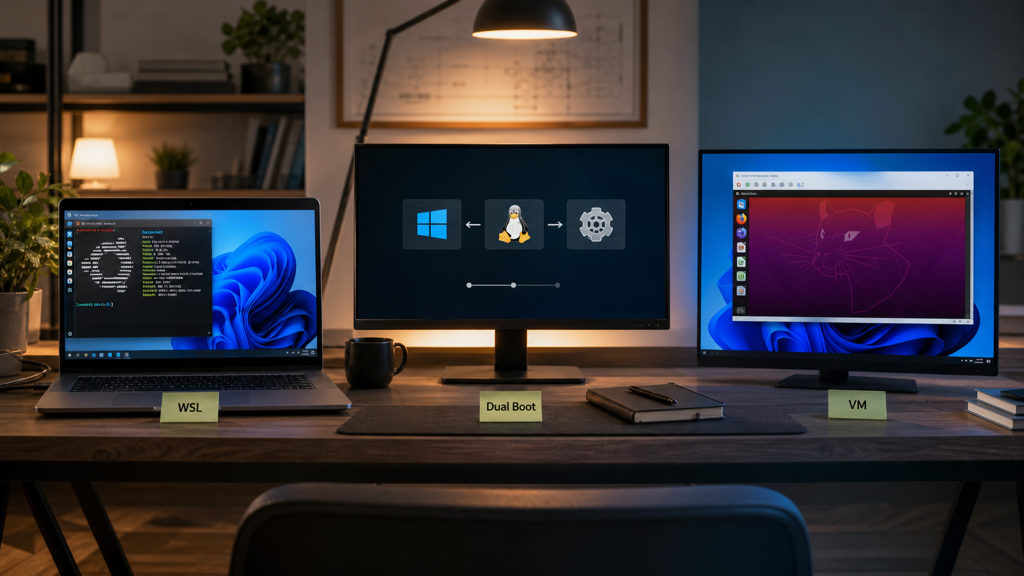
For most Windows developers, WSL is the first choice because it runs Linux command-line tools inside the Windows workflow. Use a VM when you want snapshots, disposable labs, or a full Linux system that can be thrown away. Use dual boot when the project depends on real Linux hardware behavior, graphics drivers, kernel modules, or a dedicated Linux desktop.
Setup order
Back up the Windows laptop first. Install WSL with Microsoft’s current WSL instructions, choose one distribution, update packages, set up Git and SSH, then create one small test project. Only add Docker, GPU tooling, or multiple distros after the basic path works.
Storage rules
Keep Linux project files inside the Linux filesystem for WSL performance. Keep Windows documents in Windows folders. Avoid editing the same dependency-heavy project across Windows and Linux tools unless the team has a clear rule.
VM and dual-boot rules
Use VM snapshots before risky installs. Allocate RAM and CPU conservatively so Windows stays usable. For dual boot, confirm recovery media, BitLocker recovery key, partition plan, and Wi-Fi/GPU driver support before changing the disk.
AI and container note
AI projects add model files, Python environments, containers, and GPU drivers. If the project requires CUDA or local models, verify exact GPU, driver, and framework support before choosing WSL, VM, or dual boot.
| Choice | Use it when | Watch out for |
|---|---|---|
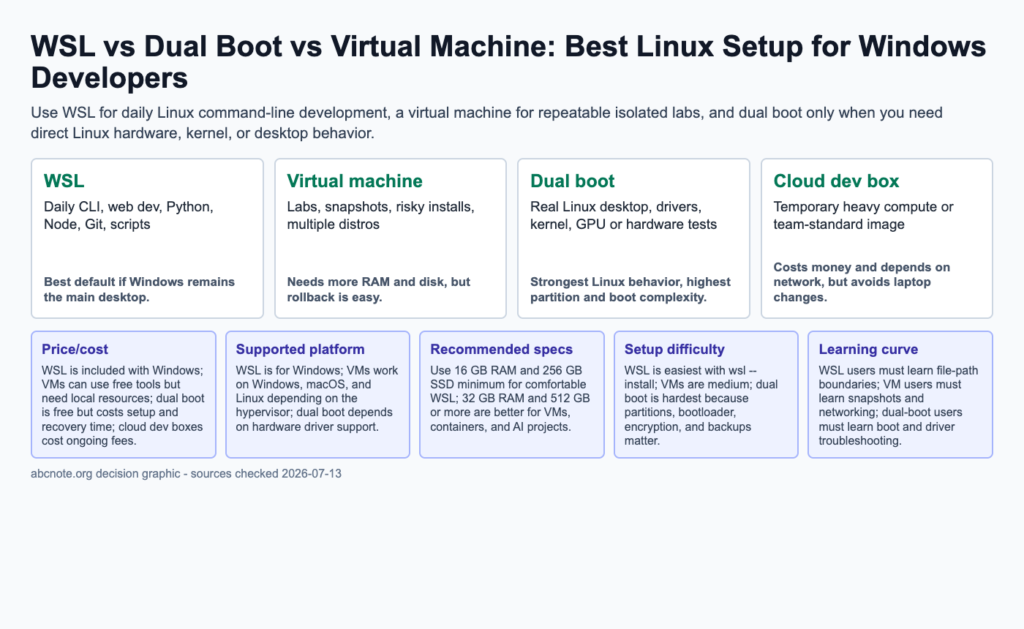
| WSL | Daily CLI, web dev, Python, Node, Git, scripts | Best default if Windows remains the main desktop. |
| Virtual machine | Labs, snapshots, risky installs, multiple distros | Needs more RAM and disk, but rollback is easy. |
| Dual boot | Real Linux desktop, drivers, kernel, GPU or hardware tests | Strongest Linux behavior, highest partition and boot complexity. |
| Cloud dev box | Temporary heavy compute or team-standard image | Costs money and depends on network, but avoids laptop changes. |
The next table turns the comparison into a practical checklist, so scan it after the main comparison instead of reading both grids as one block.
| Comparison item | Practical answer | Check before rollout |
|---|---|---|
| Price/cost | WSL is included with Windows; VMs can use free tools but need local resources; dual boot is free but costs setup and recovery time; cloud dev boxes cost ongoing fees. | Confirm with your device, account, current plan, and official documentation. |
| Supported platform | WSL is for Windows; VMs work on Windows, macOS, and Linux depending on the hypervisor; dual boot depends on hardware driver support. | Confirm with your device, account, current plan, and official documentation. |
| Recommended specs | Use 16 GB RAM and 256 GB SSD minimum for comfortable WSL; 32 GB RAM and 512 GB or more are better for VMs, containers, and AI projects. | Confirm with your device, account, current plan, and official documentation. |
| Setup difficulty | WSL is easiest with wsl –install; VMs are medium; dual boot is hardest because partitions, bootloader, encryption, and backups matter. | Confirm with your device, account, current plan, and official documentation. |
| Learning curve | WSL users must learn file-path boundaries; VM users must learn snapshots and networking; dual-boot users must learn boot and driver troubleshooting. | Confirm with your device, account, current plan, and official documentation. |
| Speed/performance | WSL is fast for many Linux tools; VMs add overhead; dual boot gives native Linux performance but requires rebooting. | Confirm with your device, account, current plan, and official documentation. |
The next table turns the comparison into a practical checklist, so scan it after the main comparison instead of reading both grids as one block.
| Review area | Recommended rule | Cadence |
|---|---|---|
| Access | Remove unused accounts, profiles, devices, routes, and integrations. | Monthly |
| Recovery | Test restore, recovery keys, backups, or reinstall commands. | Quarterly |
| Data boundary | Keep private data out of tools that do not need it. | Every new setup |
Decision checklist
- WSL: Daily CLI, web dev, Python, Node, Git, scripts. Best default if Windows remains the main desktop.
- Virtual machine: Labs, snapshots, risky installs, multiple distros. Needs more RAM and disk, but rollback is easy.
- Dual boot: Real Linux desktop, drivers, kernel, GPU or hardware tests. Strongest Linux behavior, highest partition and boot complexity.
- Cloud dev box: Temporary heavy compute or team-standard image. Costs money and depends on network, but avoids laptop changes.
Specification and comparison checklist
- Price/cost: WSL is included with Windows; VMs can use free tools but need local resources; dual boot is free but costs setup and recovery time; cloud dev boxes cost ongoing fees.
- Supported platform: WSL is for Windows; VMs work on Windows, macOS, and Linux depending on the hypervisor; dual boot depends on hardware driver support.
- Recommended specs: Use 16 GB RAM and 256 GB SSD minimum for comfortable WSL; 32 GB RAM and 512 GB or more are better for VMs, containers, and AI projects.
- Setup difficulty: WSL is easiest with wsl –install; VMs are medium; dual boot is hardest because partitions, bootloader, encryption, and backups matter.
- Learning curve: WSL users must learn file-path boundaries; VM users must learn snapshots and networking; dual-boot users must learn boot and driver troubleshooting.
- Speed/performance: WSL is fast for many Linux tools; VMs add overhead; dual boot gives native Linux performance but requires rebooting.
- Privacy/security: VMs isolate labs better; WSL shares a Windows user context; dual boot separates OSes but shared drives and boot security still matter.
- Limitations: WSL is not a full Linux desktop replacement for every hardware or kernel task; VMs may be slow; dual boot can be painful on locked-down or encrypted laptops.
Start with the Linux task you need to reproduce
Choose one project and record its required commands, filesystem behavior, devices, and network access. Try the task in the least disruptive supported environment before repartitioning a working computer. With WSL, record the distribution and WSL version and check where the project files are stored. With a virtual machine, record the guest resources and recovery method. Dual boot requires a separate plan for partitions, boot configuration, and recovery media.
Choose by required kernel, hardware, and recovery behavior
Use Microsoft’s WSL version comparison to check the requirements of a Windows-hosted Linux workflow. If your task depends on a particular physical device, kernel behavior, or isolation boundary, verify that requirement directly in the selected environment. A convenient command-line session does not prove compatibility with every Linux task, and a virtual machine is not automatically a safe place for untrusted activity when host folders or credentials are shared.
Common mistakes
Confirm the exact software environment and required device behavior before adding complexity. A successful installation does not settle compatibility with the task this article discusses.
Retest the boundary after an environment change
When the host, distribution, hypervisor, or project dependency changes, rerun the same task and record any difference. Review mounted host paths, shared folders, forwarded ports, and recovery files before the environment becomes essential to work. Keep a copy of the project outside an experiment that may be reset.
Topic documentation
Check the required kernel, file access, and device behavior in the environment you intend to use.
Choose the Linux boundary your project actually crosses
Imagine a Windows laptop used for a Linux command-line project and a separate USB-device experiment. A convenient terminal may settle the first need but not the second.
| Situation | Next check | Why it changes the decision |
|---|---|---|
| Command-line development | Check the required tools and project filesystem location. | The project can be practical without replacing the host OS. |
| Hardware-specific experiment | Confirm supported device access in the exact environment. | A Linux-looking shell does not establish physical-device compatibility. |
| Untrusted workload | Design isolation and remove shared credentials deliberately. | A VM or subsystem label does not prove the configured boundary is safe. |
Microsoft's WSL comparison explains architectural and compatibility differences between versions. Test the project's required behavior; do not choose WSL, a VM, or dual boot from a generic hardware checklist.