Quick answer: USB-C is the connector shape, not a guarantee of speed or monitor support. Thunderbolt 4 is usually the safer premium dock choice because the requirements are stricter. USB4 can be excellent, but you must check the exact speed, display support, and cable rating.
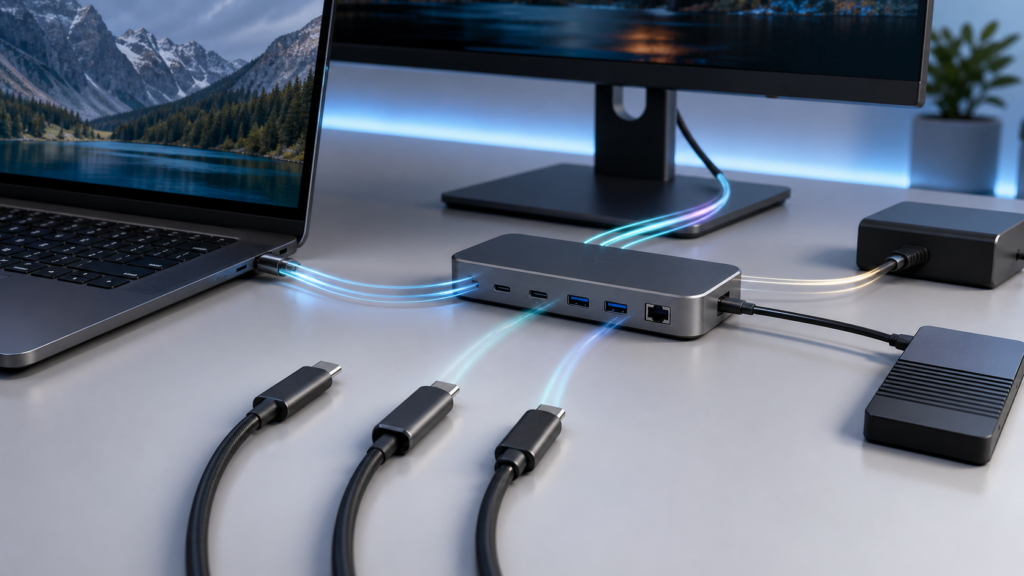
Three terms people mix up
| Term | What it means | Buying risk |
|---|---|---|
| USB-C | Connector shape | Cable may be charge-only or low-speed |
| USB4 | USB standard over USB-C | Capabilities vary by device and cable |
| Thunderbolt 4 | Intel-backed high-capability standard | Higher cost |
Recommended buying rules
- For a single charger: check wattage first, such as 60 W, 100 W, or 240 W.
- For monitors: check DisplayPort Alt Mode, Thunderbolt, or the dock’s explicit monitor specs.
- For external SSDs: check the speed label and use a short certified cable.
- For laptop docks: Thunderbolt 4 is worth paying for when you need reliable display and storage behavior.
- For cheap cables: assume nothing unless the speed and power rating are printed or documented.
Performance expectations
Intel says Thunderbolt 4 has 40 Gbps bandwidth and can connect up to two 4K 60 Hz displays through compatible gear. USB-IF describes USB4 as using USB Type-C and supporting up to 80 Gbps operation over certified 80 Gbps cables. The important buyer point is that the slowest part of the chain wins: laptop port, dock, cable, monitor, SSD enclosure, and charger all have to support the intended feature.
Common mistakes
The most common mistake is buying a USB-C cable that charges a phone and expecting it to run a 4K monitor. The second is buying a dock without checking whether the laptop supports the dock’s display mode. The third is using a long cheap cable for a high-speed SSD and blaming the drive.
How to buy the right cable or dock the first time
The expensive mistake is thinking the oval USB-C plug tells the whole story. It does not. For a dock, check laptop port capability, cable speed, display count, display resolution, refresh rate, power delivery, storage speed, and whether the dock needs drivers or firmware updates.
| For one external monitor Check whether the laptop supports DisplayPort Alt Mode or Thunderbolt/USB4 display output. Then confirm the monitor resolution and refresh rate. | For two monitors Thunderbolt 4 is often the safer premium choice. Some USB-C docks rely on DisplayLink or host-side software. |
| For fast SSDs Use a short certified high-speed cable. A charging-only USB-C cable can make a fast SSD behave like a slow device or fail entirely. | For charging Check wattage. A 30 W cable/charger is not enough for many laptops under load. Look for 60 W, 100 W, 140 W, or 240 W support depending on device needs. |
Official references: USB-IF USB4, Intel Thunderbolt 4 overview, and the laptop maker’s port specifications. Retail listings are often incomplete, so confirm with the manufacturer page when a monitor or dock purchase is expensive.
Label checklist
- Speed: 5 Gbps, 10 Gbps, 20 Gbps, 40 Gbps, or 80 Gbps.
- Power: 60 W, 100 W, 140 W, or 240 W.
- Display: exact monitor count, resolution, and refresh rate.
- Length: high-speed passive cables usually work best when shorter.
- Certification: Thunderbolt or certified USB logos are worth paying for when reliability matters.
Dock troubleshooting path
If a dock fails, test one monitor, one cable, and one port first. Then update laptop firmware, dock firmware, graphics drivers, and operating-system updates. Many dock problems are chain problems, not one bad device.
Dock and cable scenarios
| One laptop, one monitor A simple USB-C dock can be enough if the laptop supports display output over USB-C and the monitor is not demanding. | One laptop, two monitors Thunderbolt 4 is often the safer choice, especially for 4K displays and fewer driver surprises. |
| Creator with external SSD Prioritize high-speed certified cables and SSD enclosures. Storage performance can collapse with the wrong cable. | Travel bag Carry one known-good charging/data cable and one dedicated high-speed cable. Label them so they do not get mixed up. |
The buyer rule is to match the whole chain: laptop port, dock, cable, charger, monitor, and SSD. If one part is low-spec, the setup behaves like the low-spec part. That is why a good dock can look broken when paired with a charge-only cable.
Final buying check: when a dock listing is vague, assume less. Look for the exact words Thunderbolt 4, USB4 40Gbps, DisplayPort Alt Mode, Power Delivery wattage, and supported monitor combinations. If those details are missing, buy from a seller with easy returns.
Sources checked: USB-IF USB4 official page and Intel Thunderbolt 4 overview. Last checked: July 13, 2026.
Test the whole dock chain, not only the cable
Most USB-C dock problems come from assuming one label guarantees the whole setup. The actual chain is laptop port, operating system, dock chipset, cable, charger, display, SSD, keyboard, webcam, and sometimes corporate security software. If one link does not support the feature, the setup falls back or fails. That is why a cable that charges perfectly can still fail with a 4K monitor, and a dock that works on one laptop can behave differently on another.
Before keeping an expensive dock, test the exact daily setup during the return window. Connect every monitor at the target refresh rate, charge the laptop under load, copy a large file to an external SSD, join a video call with webcam and microphone, sleep and wake the laptop, and unplug/replug once. If the dock fails during sleep, monitor detection, or sustained SSD transfers, the spec sheet alone is not enough.
Mac, Windows, and mixed-device desks
Mixed-device desks need extra caution. A Thunderbolt 4 dock is often the safest premium choice for predictable behavior, but monitor limits can still vary by laptop model, operating system, GPU, and display protocol. A Windows laptop with Thunderbolt may support a different display arrangement than a Mac. A USB4 laptop may support high-speed data but still have different display behavior than a certified Thunderbolt system.
| Before buying | Check this | Why it matters |
|---|---|---|
| Two monitors | Resolution, refresh rate, and laptop display limits | Dock support does not guarantee laptop support. |
| Fast SSD | Port speed, enclosure, and certified short cable | The slowest part sets the transfer speed. |
| One-cable desk | Power delivery wattage under load | A dock can connect devices but still undercharge the laptop. |
For a buyer, the safest checklist is: identify the laptop port capability, choose the dock around monitor needs, use a certified cable with printed speed and wattage, and test the real desk before the return period ends. A cheap cable is fine for charging a mouse; it is not the place to save money when a monitor, dock, and external SSD depend on it.
A dock purchase needs a port-to-display chain
Suppose a dock advertises a high link speed but your laptop supports a different display output configuration. Trace laptop port, cable, dock, display, resolution, and refresh rate before ordering.
| Situation | Next check | Why it changes the decision |
|---|---|---|
| Connector fits | Check the port's supported protocols and functions. | USB-C shape alone does not identify data, charging, or display capability. |
| Link speed is sufficient | Verify the exact display configuration and host limits. | Bandwidth is not the only condition for multiple monitors. |
| Laptop charging matters | Compare the negotiated power and device requirements. | A data-compatible cable may not provide the needed charging capability. |
Use the manufacturer's specifications for every link in the chain. This is a compatibility analysis, not a tested claim that a particular dock can drive your displays.