
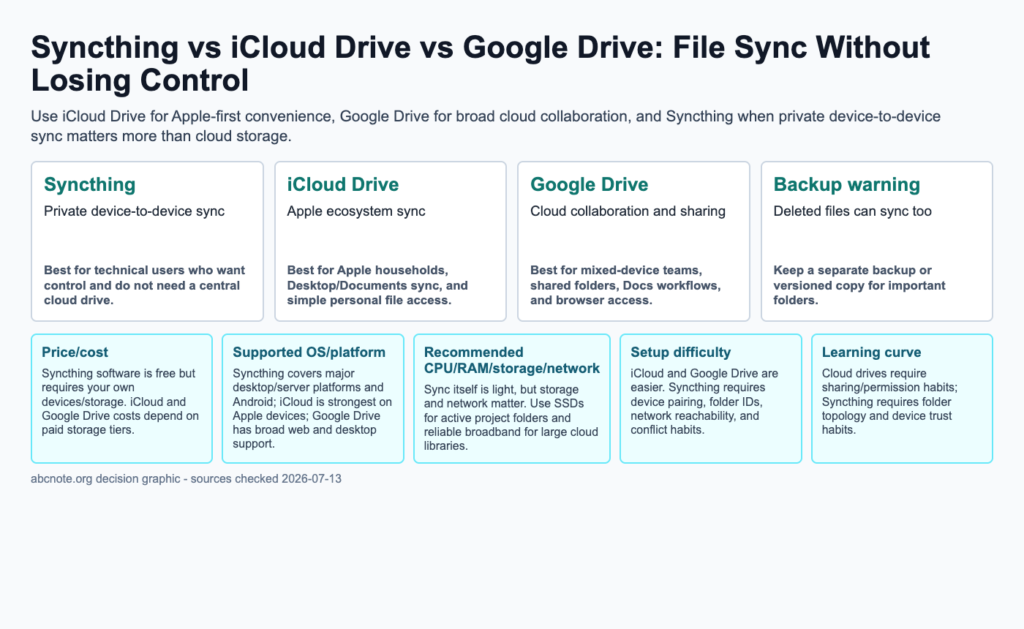
Quick answer: Use iCloud Drive for Apple-first convenience, Google Drive for broad cloud collaboration, and Syncthing when private device-to-device sync matters more than cloud storage.
The useful answer
Syncthing, iCloud Drive, and Google Drive solve different problems. Syncthing syncs between your devices without making a provider cloud the central storage point. iCloud Drive is convenient for Apple users. Google Drive is strongest for collaboration and web-first sharing. None of them should be your only backup for important files.
Sync versus backup
Sync keeps folders aligned. That means good changes move quickly, but bad changes can move quickly too. If a file is deleted, encrypted by malware, overwritten, or corrupted, sync can spread the damage. Backup keeps recoverable history outside the active sync loop.
Privacy and sharing
Syncthing is attractive when files should stay between trusted devices, but every paired device becomes part of the trust boundary. iCloud and Google Drive are easier for sharing, but account security, link permissions, and third-party app access matter. Review shared folders quarterly.
Folder design
Do not sync everything by default. Create folders such as Active Documents, Archive, Shared With Family, Private Notes, and Large Media. Keep application caches, virtual machines, node_modules, and temporary build folders out of sync unless you have a specific reason.
Best use cases
Use Syncthing for private project folders, local notes, home-server sync, and device-to-device control. Use iCloud Drive for Apple convenience and personal documents. Use Google Drive for shared workspaces, browser collaboration, and mixed-device teams. Use a separate backup layer for anything you cannot lose.
| Option | Best use | Main limitation |
|---|---|---|
| Syncthing | Private device-to-device sync | Best for technical users who want control and do not need a central cloud drive. |
| iCloud Drive | Apple ecosystem sync | Best for Apple households, Desktop/Documents sync, and simple personal file access. |
| Google Drive | Cloud collaboration and sharing | Best for mixed-device teams, shared folders, Docs workflows, and browser access. |
The next table turns the comparison into a practical checklist, so scan it after the main comparison instead of reading both grids as one block.
| Comparison item | Practical answer | What to check |
|---|---|---|
| Price/cost | Syncthing software is free but requires your own devices/storage. iCloud and Google Drive costs depend on paid storage tiers. | Verify against your device, account policy, and official documentation before rollout. |
| Supported OS/platform | Syncthing covers major desktop/server platforms and Android; iCloud is strongest on Apple devices; Google Drive has broad web and desktop support. | Verify against your device, account policy, and official documentation before rollout. |
| Recommended CPU/RAM/storage/network | Sync itself is light, but storage and network matter. Use SSDs for active project folders and reliable broadband for large cloud libraries. | Verify against your device, account policy, and official documentation before rollout. |
| Setup difficulty | iCloud and Google Drive are easier. Syncthing requires device pairing, folder IDs, network reachability, and conflict habits. | Verify against your device, account policy, and official documentation before rollout. |
| Learning curve | Cloud drives require sharing/permission habits; Syncthing requires folder topology and device trust habits. | Verify against your device, account policy, and official documentation before rollout. |
| Speed/performance | Local LAN sync can be fast; cloud sync depends on upload speed, provider limits, and file count. | Verify against your device, account policy, and official documentation before rollout. |
The next table turns the comparison into a practical checklist, so scan it after the main comparison instead of reading both grids as one block.
| Risk | Safer rule | Review cadence |
|---|---|---|
| Overexposure | Expose the smallest useful folder, app, device, or route. | Monthly |
| Account lockout | Keep recovery codes, backup admin paths, and documented ownership. | Quarterly |
| Data loss | Keep a separate backup outside active sync or test environment. | Monthly |
Decision checklist
- Syncthing: Private device-to-device sync. Best for technical users who want control and do not need a central cloud drive.
- iCloud Drive: Apple ecosystem sync. Best for Apple households, Desktop/Documents sync, and simple personal file access.
- Google Drive: Cloud collaboration and sharing. Best for mixed-device teams, shared folders, Docs workflows, and browser access.
- Backup warning: Deleted files can sync too. Keep a separate backup or versioned copy for important folders.
Specification and comparison checklist
- Price/cost: Syncthing software is free but requires your own devices/storage. iCloud and Google Drive costs depend on paid storage tiers.
- Supported OS/platform: Syncthing covers major desktop/server platforms and Android; iCloud is strongest on Apple devices; Google Drive has broad web and desktop support.
- Recommended CPU/RAM/storage/network: Sync itself is light, but storage and network matter. Use SSDs for active project folders and reliable broadband for large cloud libraries.
- Setup difficulty: iCloud and Google Drive are easier. Syncthing requires device pairing, folder IDs, network reachability, and conflict habits.
- Learning curve: Cloud drives require sharing/permission habits; Syncthing requires folder topology and device trust habits.
- Speed/performance: Local LAN sync can be fast; cloud sync depends on upload speed, provider limits, and file count.
- Privacy/security: Syncthing avoids storing data in a provider cloud by default; cloud drives require account security and sharing review.
- Limitations: Sync does not replace backup, and conflicts can still happen when multiple devices edit the same file.
Use a disposable folder to test sync and recovery separately
Pair two intended devices using a folder containing disposable files. Confirm that a new file reaches the second device, then edit the same file and observe the result. Before testing deletion, establish a separate recovery copy that the synchronization process cannot overwrite. Record which device changed the file and where the recoverable version resides. This proposed test distinguishes a working sync path from a usable recovery path.
A synchronized deletion is not a recovery result
Compare three properties independently: which devices receive changes, which people can access the folder, and how an older or deleted file is restored. For Syncthing, review the versioning settings on the relevant receiving folder. Its documentation explains that versioning is configured per folder and does not archive local changes in the same way as changes received from another device. Do not assume that enabling versioning on one device protects every edit everywhere.
When a sync service is being asked to act as a backup
Reconsider the design if the only spare copy is another device receiving the same deletions, if a shared folder includes material outside its intended audience, or if nobody knows which copy is authoritative after a conflict. A separate restore check is more useful than choosing a service solely because it advertises automatic synchronization.
Review paired devices and restore one sample file
After replacing a device or changing a shared folder, review the destination paths and access list. Restore a disposable sample from the designated recovery location and record its version. For Syncthing, consult the official file-versioning documentation when deciding which changes the configured mode retains. The exercise is a suggested check, not a claim that ABCNote measured restore reliability.
Topic documentation
Confirm version retention on each device and distinguish it from the independent recovery copy.
Deleting on Device A tells you where Device B's history matters
In a disposable two-device example, change a file on Device A while Device B receives the change. Syncthing's documented versioning behavior concerns received changes on the device where versioning is configured.
| Situation | Next check | Why it changes the decision |
|---|---|---|
| Change made locally on A | Do not assume A's versioning archives its own edit. | The local change is outside that documented received-change behavior. |
| Change received on B | Inspect B's configured versioning and retention. | Versioning is set per folder and device. |
| Both copies are missing | Restore from the independent recovery path. | A synchronized copy alone is not an independent backup. |
The example follows Syncthing's official versioning distinction; it is not a measured restore test. Rehearse with disposable files and verify a separate backup before trusting recovery.