LM Studio is a desktop app for running local AI models on your own computer. It is useful when you want to experiment with local LLMs but do not want to start with terminal commands.
Quick answer: LM Studio is a beginner-friendly way to test local models, compare responses, and understand hardware limits. It is especially useful before you decide whether local AI belongs in your real workflow.

Logo sources checked
- LM Studio: Official LM Studio brand download asset.
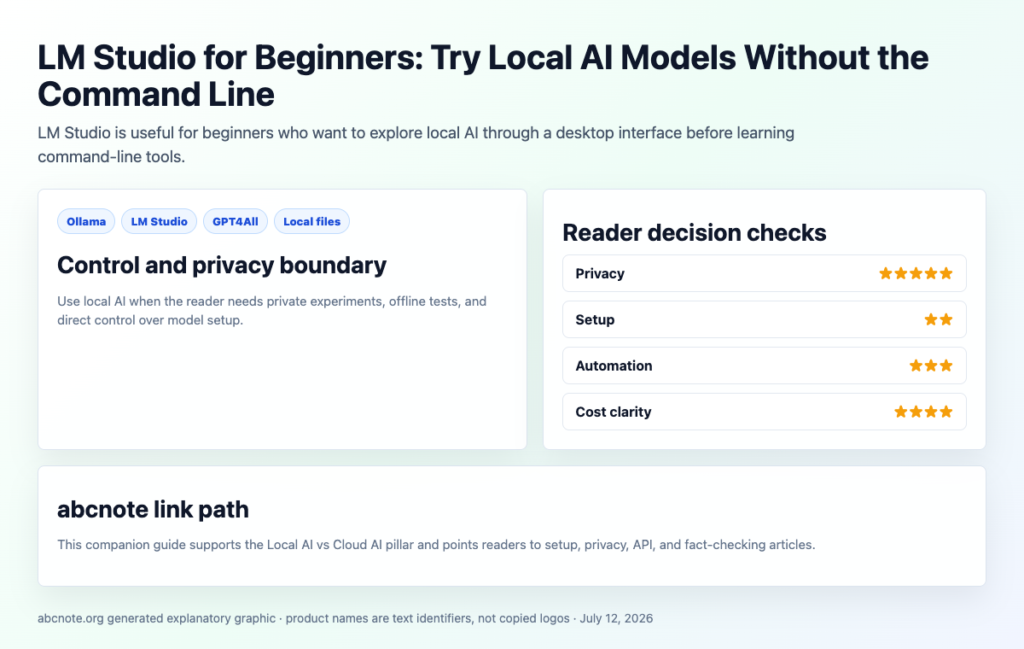
What LM Studio is
LM Studio is a local AI app. You use it to find models, download them, and chat with them on your own hardware. Its official site describes the product as a way to run AI models locally and privately on your computer.
This makes it different from cloud-first tools such as ChatGPT, Claude, Gemini, or hosted APIs. With LM Studio, the local app and local model are the center of the workflow.
Use case and audience: LM Studio or Ollama?
Start with LM Studio when you want a visual desktop interface, easier model browsing, local chat without scripts, or a low-friction way to compare models. It is a practical first step for bloggers, students, solo operators, and small businesses that want to see whether local AI is useful before spending time on servers or automation.
Start with Ollama when command-line control, a local API for scripts, repeatable automation tests, or a lightweight developer workflow matters more than a visual interface.
For a first download, begin with a smaller model that fits your hardware. Llama 3 8B and Mistral 7B are common beginner reference points: they are useful examples of the model size range to compare before moving to larger downloads. Check RAM, VRAM, disk space, and expected speed before choosing a model.
What to test first
Use a simple, non-sensitive prompt:
- Ask for a summary of a public article.
- Ask for a checklist from the same article.
- Ask for a rewrite in a beginner-friendly voice.
- Compare the result with a cloud model.
- Record speed, answer quality, and whether the model followed instructions.
Privacy reminder
Running a model locally can reduce cloud exposure, but it does not remove every risk. Check whether the app stores chat history, where models are downloaded from, whether files are indexed, and whether any extensions or sync tools are involved.
Who should start with LM Studio
LM Studio is a good first step for readers who are curious about local AI but are not ready to manage command-line tools. It makes the model choice and chat experience more visible, which is helpful when the reader is still learning the vocabulary.
A blogger, student, solo operator, or small business owner can use LM Studio to test whether local AI feels useful before investing time in scripts, servers, or API automation.
LM Studio vs Ollama vs GPT4All
| Tool | Best beginner fit | Tradeoff |
|---|---|---|
| LM Studio | Visual desktop testing and model comparison. | Less script-first than Ollama. |
| Ollama | Local API experiments and developer workflows. | More command-line comfort helps. |
| GPT4All | Another local desktop-style option for everyday computers. | Still needs model and privacy checks. |
A safe test prompt set
Use the same prompt set across LM Studio and one cloud model. That makes the comparison fair.
- “Summarize this public article in five bullets.”
- “Turn the summary into a beginner checklist.”
- “Find weak claims that need sources.”
- “Rewrite this paragraph for a non-technical reader.”
- “Return the result as a table with columns: task, risk, next action.”
When LM Studio is not enough
If the workflow needs a server, scheduled automation, shared team access, or reliable production API behavior, a cloud API may be simpler. LM Studio is excellent for learning and local experiments, but the final workflow may still become hybrid.
Install and use LM Studio: beginner path
LM Studio is the easiest local AI path when the reader wants a desktop interface. Its official docs point users to the downloads page and say LM Studio is available for macOS, Windows, and Linux.
- Download LM Studio from the official download page.
- Install the app for your operating system.
- Open LM Studio and choose a small model first.
- Start a local chat and test public or fake data.
- Only after that, try the Developer or local server features.
LM Studio local server checklist
| Feature | Beginner meaning | Safety note |
|---|---|---|
| Chat interface | Talk to a local model in a desktop app. | Check where chats are saved. |
| Model download | Pick a model that fits your hardware. | Use known model sources. |
| Local server | Serve a model on localhost for tools and scripts. | Keep it on localhost by default. If you connect other tools or change firewall settings, verify that the server is not reachable from a wider network unless that access is intentional. |
| OpenAI-compatible API | Some tools can connect as if it were an OpenAI-like endpoint. | Test with harmless prompts first. |
LM Studio is a strong bridge between simple local chat and local automation. It is especially useful before a beginner decides whether to use Ollama, OpenAI API, Claude API, or Gemini API for a larger workflow.
Related reading
- Local AI vs Cloud AI: Which Is Better for Privacy, Cost, and Speed?
- Ollama for Beginners: How to Run Local AI on Your Computer
- Local AI Privacy Checklist: What Still Can Leak From Your Computer
Last checked: July 12, 2026.
Source Notes
- LM Studio official site: https://lmstudio.ai/
- GPT4All documentation for another local-AI comparison point: https://docs.gpt4all.io/index.html
A graphical model load has three different failure points
In an illustrative first LM Studio session, separate downloading the file, loading it into memory, and generating a response. The troubleshooting action should match the failed stage.
| Situation | Next check | Why it changes the decision |
|---|---|---|
| Download fails | Check disk space, source availability, and the exact model file. | Changing a prompt will not repair a missing download. |
| Model cannot load | Inspect format support, memory, and runtime messages. | A downloaded file is not proof of compatibility. |
| Model loads but answers poorly | Review the prompt, model, and task fit. | Application setup and answer correctness are separate checks. |
Use non-sensitive text for the first session. Record the error at the failed stage rather than reinstalling everything; this is a diagnostic example, not a measured product reliability claim.