Quick answer: Use CPU for small models and compatibility, GPU/VRAM for heavier local LLM and image workloads, NPU for efficient supported on-device features, and RAM/storage as the baseline that prevents every option from feeling cramped.
The practical answer
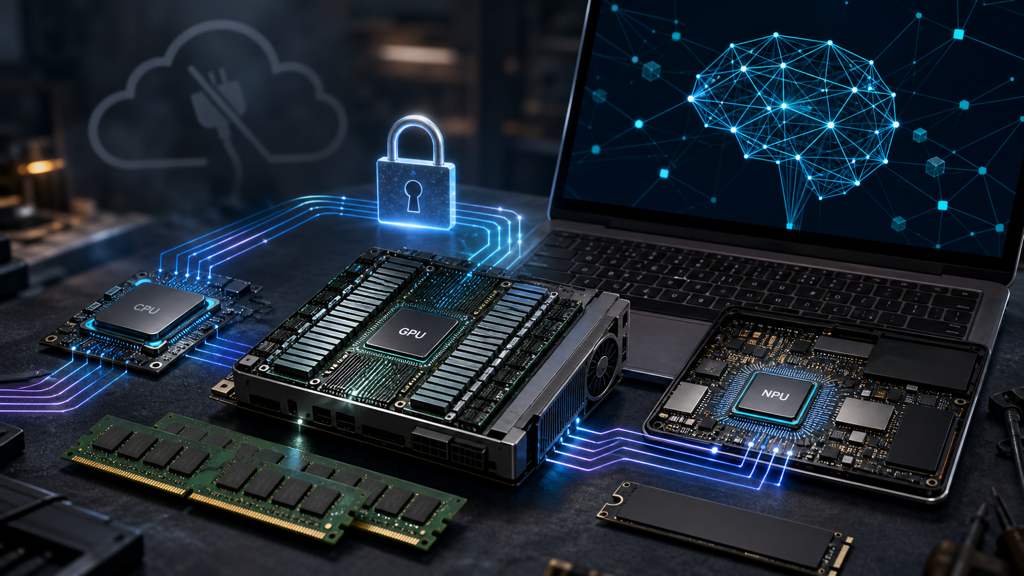
For local AI, CPU, GPU, and NPU are different tools. The CPU runs almost everything but may be slow. The GPU is usually the workhorse for heavier local models and image generation when the software stack supports it. The NPU is efficient for supported on-device features, especially AI PC features, but it is not a universal replacement for a GPU.
What TOPS means
TOPS describes a chip’s theoretical AI operations, but it does not tell you whether your specific app, model, driver, and memory path will be fast. A supported NPU feature can feel excellent, while an unsupported local LLM may ignore the NPU entirely.
RAM and VRAM rules
RAM holds the operating system, apps, browser tabs, datasets, and some model workflows. VRAM is the dedicated memory that makes many GPU AI workloads practical. If a model does not fit, it may fall back to slower memory paths or fail.
Buying rules
Do not buy an AI laptop only for an NPU label. Check CPU generation, RAM, SSD, battery, ports, screen, keyboard, GPU/VRAM if needed, and whether the apps you use actually support the NPU or GPU. For local AI experimentation, 32 GB RAM is a more useful comfort target than many marketing badges.
Privacy rules
Local AI is private only when the data stays local. Disable cloud fallback if needed, read app settings, separate private folders, avoid syncing model prompts into shared accounts, and keep sensitive experiments in a controlled profile or offline workspace.
| Choice | Use it when | Watch out for |
|---|---|---|
| CPU | Small models, embeddings, scripts, broad compatibility | Works almost everywhere, but can be slow and power-hungry. |
| GPU | Larger local LLMs, image generation, parallel workloads | VRAM and software support matter more than logo alone. |
| NPU | Efficient supported on-device AI features | Great when the app uses it; useless for unsupported workloads. |
| RAM and storage | The baseline for models, context, browser, IDE, datasets | 16 GB is a floor; 32 GB and 1 TB are more comfortable. |
Once the basic roles are clear, the next table turns the same CPU/GPU/NPU choice into buying and setup checks: cost, platform support, specs, driver friction, and real speed.
| Comparison item | Practical answer | Check before rollout |
|---|---|---|
| Price/cost | CPU-only reuse is cheapest; GPU machines cost more and use more power; NPU laptops may cost more for features that only help supported apps. | Confirm with your device, account, current plan, and official documentation. |
| Supported platform | GPU acceleration depends on CUDA, Metal, DirectML, ROCm, Vulkan, or app-specific support; NPU support depends on Windows, chip vendor SDKs, and application adoption. | Confirm with your device, account, current plan, and official documentation. |
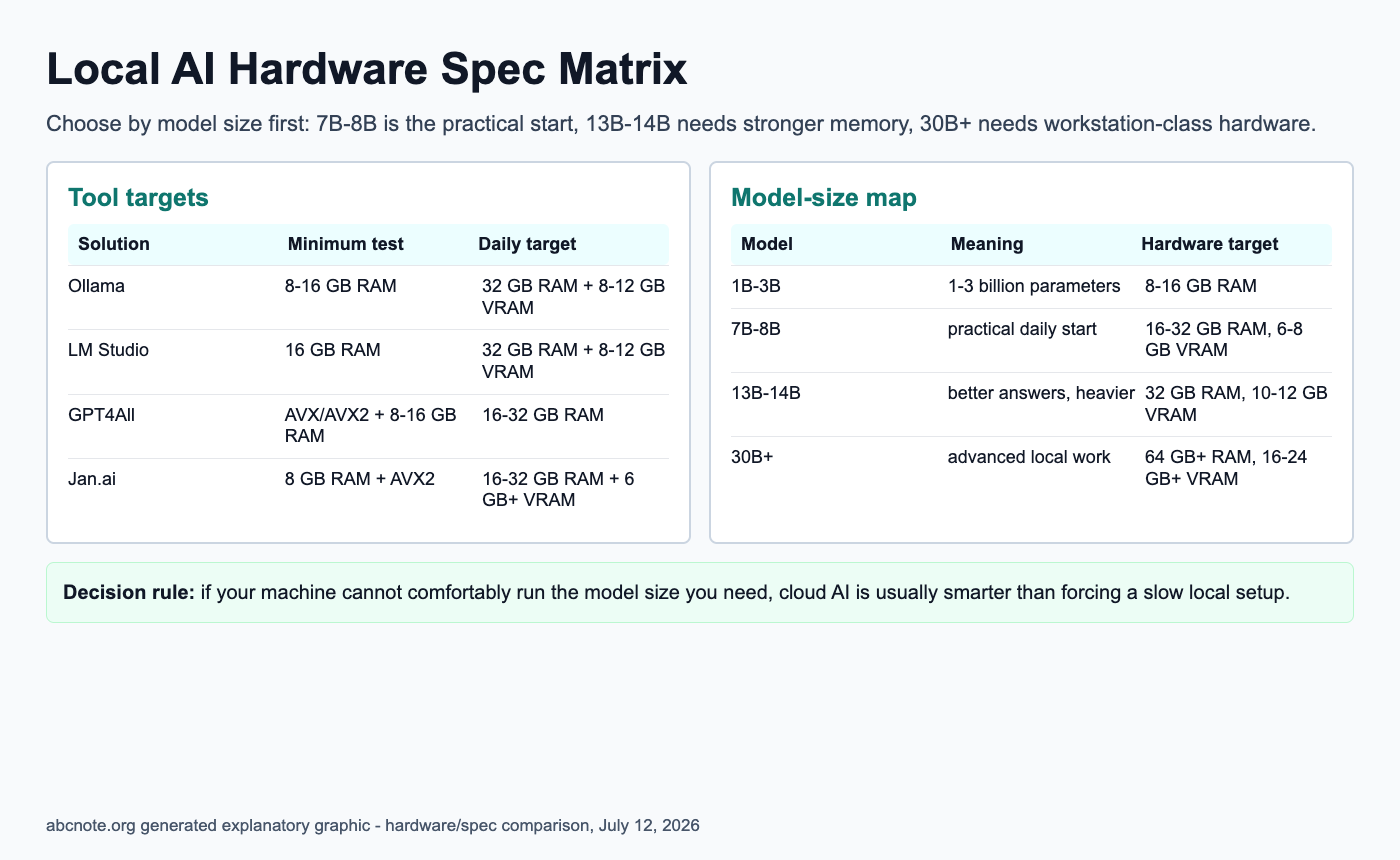
| Recommended specs | For modern AI laptops, use 16 GB RAM and 256 GB SSD as an absolute floor, 32 GB RAM and 512 GB-1 TB SSD for comfort, and enough VRAM for the model size if using a discrete GPU. | Confirm with your device, account, current plan, and official documentation. |
| Setup difficulty | CPU local AI is easiest; GPU setup is medium because drivers matter; NPU setup is easy only when the feature is built into the OS or app. | Confirm with your device, account, current plan, and official documentation. |
| Learning curve | Users need to understand RAM vs VRAM, TOPS vs real app speed, model quantization, context size, and driver support. | Confirm with your device, account, current plan, and official documentation. |
| Speed/performance | GPU usually wins on heavy parallel workloads; NPU wins on efficient supported features; CPU wins on universal fallback. | Confirm with your device, account, current plan, and official documentation. |
After the hardware comparison, the final table is a maintenance check. It covers the habits that keep local AI private and recoverable after the first setup is finished.
| Review area | Recommended rule | Cadence |
|---|---|---|
| Access | Remove unused accounts, profiles, devices, routes, and integrations. | Monthly |
| Recovery | Test restore, recovery keys, backups, or reinstall commands. | Quarterly |
| Data boundary | Keep private data out of tools that do not need it. | Every new setup |
Decision checklist
- CPU: Small models, embeddings, scripts, broad compatibility. Works almost everywhere, but can be slow and power-hungry.
- GPU: Larger local LLMs, image generation, parallel workloads. VRAM and software support matter more than logo alone.
- NPU: Efficient supported on-device AI features. Great when the app uses it; useless for unsupported workloads.
- RAM and storage: The baseline for models, context, browser, IDE, datasets. 16 GB is a floor; 32 GB and 1 TB are more comfortable.
Specification and comparison checklist
- Price/cost: CPU-only reuse is cheapest; GPU machines cost more and use more power; NPU laptops may cost more for features that only help supported apps.
- Supported platform: GPU acceleration depends on CUDA, Metal, DirectML, ROCm, Vulkan, or app-specific support; NPU support depends on Windows, chip vendor SDKs, and application adoption.
- Recommended specs: For modern AI laptops, use 16 GB RAM and 256 GB SSD as an absolute floor, 32 GB RAM and 512 GB-1 TB SSD for comfort, and enough VRAM for the model size if using a discrete GPU.
- Setup difficulty: CPU local AI is easiest; GPU setup is medium because drivers matter; NPU setup is easy only when the feature is built into the OS or app.
- Learning curve: Users need to understand RAM vs VRAM, TOPS vs real app speed, model quantization, context size, and driver support.
- Speed/performance: GPU usually wins on heavy parallel workloads; NPU wins on efficient supported features; CPU wins on universal fallback.
- Privacy/security: Offline local AI can keep data on device, but telemetry, cloud fallback, plugins, sync folders, and app accounts must be checked.
- Limitations: A high TOPS number does not guarantee local LLM speed, and a powerful GPU does not help if the software cannot use it.
Load the intended model before judging the processor
Record the model, quantization, context length, runtime, and selected execution backend. Then check whether the application actually uses the expected accelerator. Keep the test prompt and settings constant when comparing two supported configurations. Record load failure, memory pressure, response time, and any cloud fallback. These are proposed measurement fields; no results or processor ranking are asserted here.
Separate model fit from execution speed
A processor label cannot answer whether a model fits the available memory or whether the runtime supports that processor. Check memory capacity and software compatibility first. Compare speed only after the same workload runs successfully under documented settings. Treat CPU, GPU, and NPU specifications as inputs to that check rather than interchangeable performance scores.
Common mistakes
Check which backend actually executes the workload. Comparing processor specifications before verifying runtime support can confuse available hardware with usable acceleration.
Retest after model, driver, or backend changes
Repeat the saved workload after changing the model, runtime, driver, or accelerator configuration. A changed result may reflect a different backend, context size, or memory limit. Keep the earlier settings with the measurement so an improvement can be attributed to a concrete change rather than a new hardware label.
Topic documentation
Match model format, runtime backend, and memory behavior to the documented software version.
Accelerator labels cannot explain a CPU fallback
For an illustrative local-model session, the computer includes an NPU but the chosen runtime loads the model on the CPU. The hardware specification and the observed execution path answer different questions.
| Situation | Next check | Why it changes the decision |
|---|---|---|
| Application does not support the accelerator | Select a supported backend or change the application. | Available silicon cannot accelerate unsupported software. |
| Backend is supported but not selected | Inspect runtime settings and device reporting. | An installation success is not proof of acceleration. |
| Backend runs but the model exceeds memory | Reduce the workload or select adequate memory. | A fast accelerator cannot remove every capacity constraint. |
Record runtime, model, quantization, context, and observed device together. This is a diagnostic path, not a comparison of measured CPU, GPU, and NPU performance.